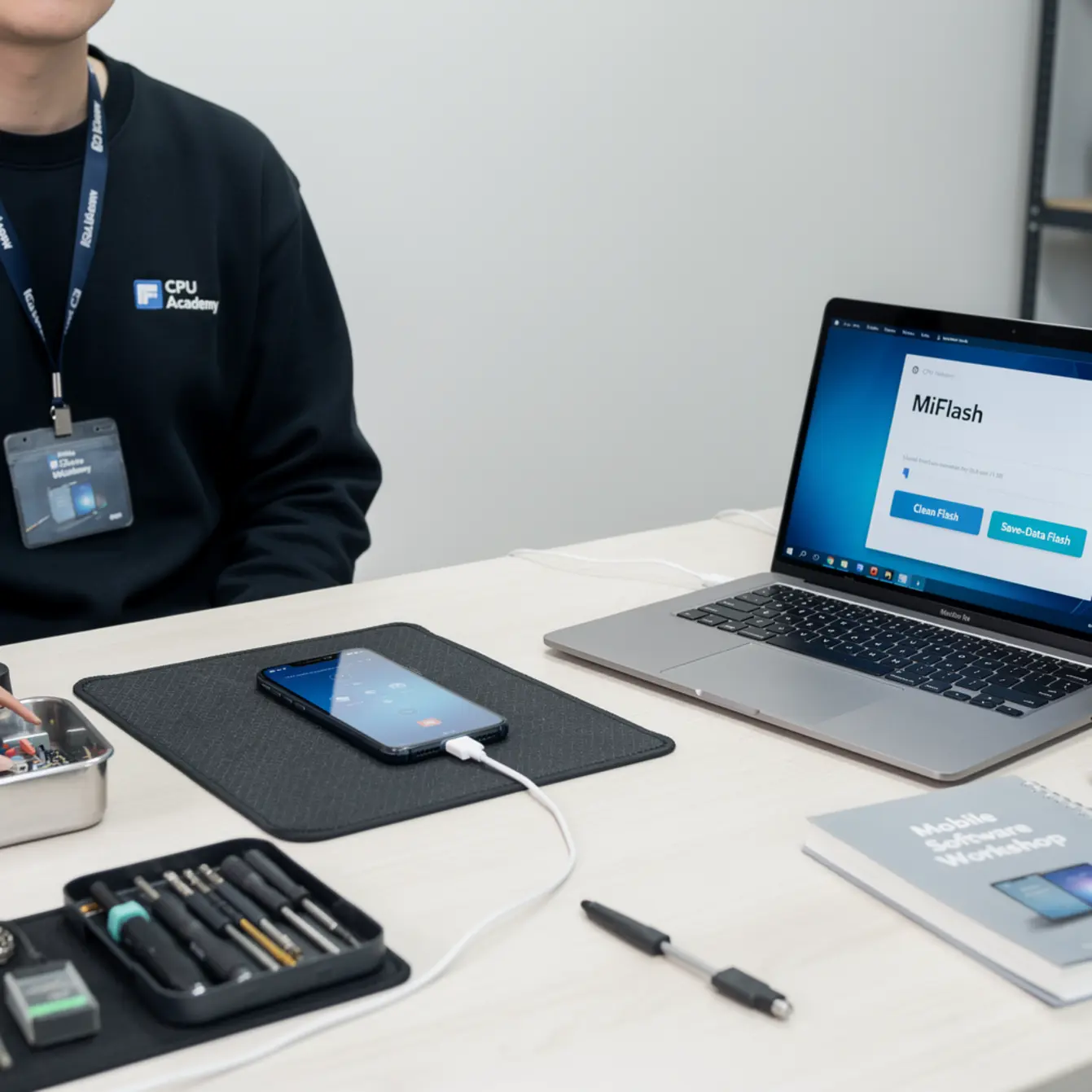
Quick verdict: In Xiaomi MiFlash, Clean Flash wipes all data and writes a fresh ROM — it is the safest recovery option when a phone is stuck in a boot loop or after a bad update. Save-Data Flash attempts to preserve user files while updating the firmware. Use Clean Flash when you need a guaranteed fix; use Save-Data Flash only when backup is impossible and you have documented owner consent. Both options are legal and policy-safe when the technician owns the device or has written proof of authorization.
Picture this: a Xiaomi Redmi walks in, stuck in a boot loop, owner wants it back the same day. You open MiFlash and two options stare back at you — flash all (Clean Flash) and flash all except storage (Save-Data Flash). Pick the wrong one and you waste an hour at best, lose a customer’s trust at worst. That kind of decision is what a real mobile phone software course actually prepares you for: know the tool, know the limits, and know when to put it down.
Want a clean, legal, step-by-step software workflow instead of piecing together random fixes? Open CPU Academy’s Mobile Phone Software Repair Course and see the full program.
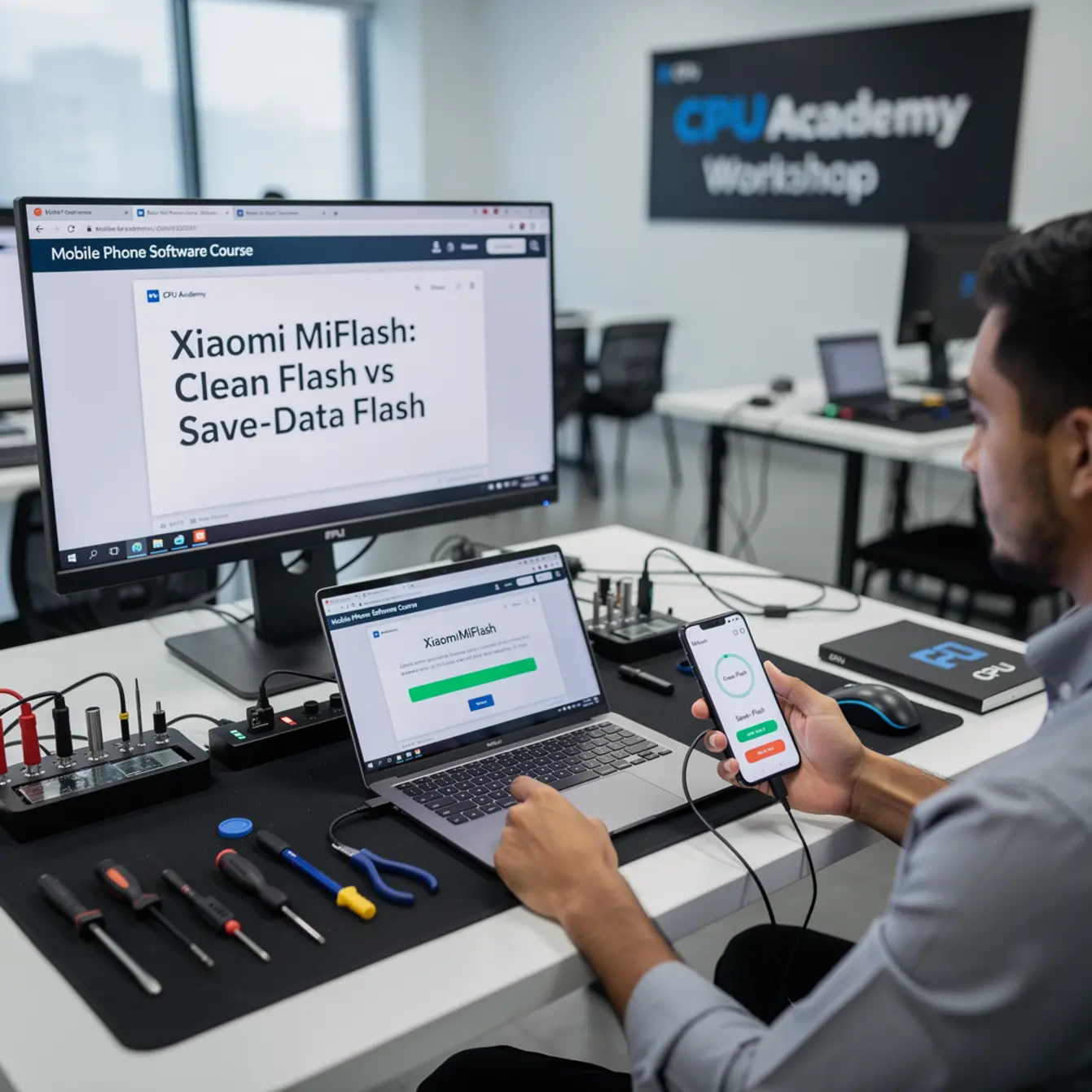
Quick answer and legal boundary
Clean Flash erases every partition — system, data, cache — then writes a fresh firmware image from scratch. Save-Data Flash skips the user-data partition so personal files may survive, but that shortcut carries a real risk: leftover corruption can stick around and cause problems the customer notices three days later.
Legally, both options require either owner permission or the device being yours. Flashing someone else’s phone without documented consent is not a gray area. In most US states it can cross into device-tampering territory. Document everything before you even plug in the cable.
Consent and proof of ownership
Before MiFlash opens, you need a signed repair authorization form or a purchase receipt with the customer’s name on it. Keep a copy on file. If a walk-in cannot produce either one, the right call is to turn the job away. That protects the customer and it protects you.
Backup first — always
Even when you plan a Save-Data Flash, attempt a backup anyway. Xiaomi’s Mi PC Suite handles most scenarios, and a manual adb backup covers the rest. If the phone boots at all, ten minutes of backup time prevents an angry callback later.
| Criterion | Clean Flash (flash_all) | Save-Data Flash (flash_all_except_storage) |
|---|---|---|
| Data risk | All user data erased | User data may be preserved |
| Repair success rate | Higher — clean slate | Lower if corruption is deep |
| Boot loop fix | Reliable | Sometimes, not always |
| FRP / Google account | FRP lock may remain; owner must log in | Same — FRP is not cleared |
| Best for | Hard bricks, boot loops, corrupted system | Firmware update when backup is not possible |
| Owner consent needed | Yes, always | Yes, always |
Study that table and you will spot the pattern: most beginners get the consent-and-backup sequence wrong before they ever open the tool. That is the single most repeated mistake in phone firmware repair training, and it is entirely avoidable.
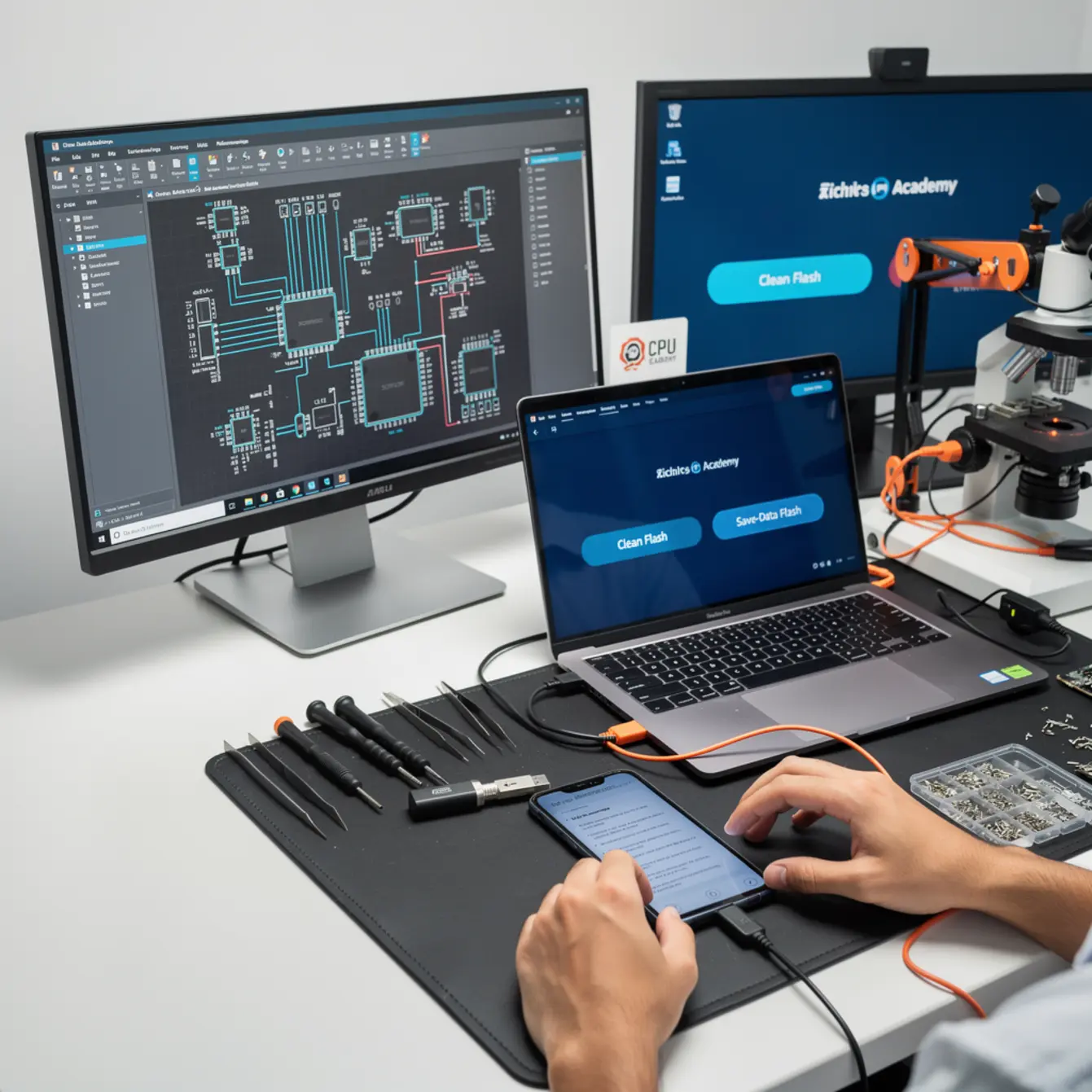
What tools or modes are involved
Xiaomi MiFlash is Xiaomi’s own free PC-side flashing utility. It talks to the phone through either Qualcomm’s EDL (Emergency Download) mode or Fastboot mode, depending on which chipset is inside and which ROM package you are running.
Vendor tool choice
Always pull MiFlash from Xiaomi’s official support pages. Get ROM files from the Xiaomi official ROM download center. Third-party ROM bundles sometimes include modified scripts that quietly change flash behavior or drop in unwanted code. Skip them entirely — the risk is not worth saving a few minutes of download time.
You will also need the correct Qualcomm USB driver installed on a Windows PC, and the phone has to be in the right mode before MiFlash can even see it. On most Qualcomm Xiaomi devices, EDL entry means holding Volume Up and Volume Down together while connecting a USB cable from a powered-off state. A quality cable matters here too; a worn-out generic cable drops the connection mid-flash more often than most guides admit. A known-good cable like an Anker or Ugreen braided USB-A to USB-C holds the link cleanly through the entire process. MediaTek models use a different entry method altogether.
A solid software mobile cell phone repair course walks you through driver installation, device detection, and ROM selection in a reproducible sequence. Not a one-off YouTube fix you cannot repeat on the next phone.
Clean workflow step by step
Run this checklist every single time. Skipping steps is the fastest way to guarantee a second visit from the same unhappy customer.
✅ MiFlash Pre-Flash Checklist
- Collect signed repair authorization or proof of purchase before anything else
- Attempt data backup via Mi PC Suite, adb, or cloud sync and note the outcome on the repair ticket
- Download the correct ROM for the exact model number, not just the series name
- Verify ROM MD5/SHA1 hash against Xiaomi’s posted value before unzipping
- Install Qualcomm or MTK driver on the flashing PC
- Charge the phone to at least 30% if it boots partially — a dead battery mid-flash makes things worse
- Put the phone into EDL or Fastboot mode using a known-good USB cable
- Open MiFlash, click Select, point to the unzipped ROM folder
- Choose flash_all (Clean Flash) or flash_all_except_storage (Save-Data Flash)
- Click Flash and do not touch the cable mid-process
- Wait for the “success” status before removing anything
- Document the outcome, the ROM version used, and the flash mode chosen on the repair ticket
Hash verification stops a lot of headaches before they start. A ROM that is even 1 MB short of its expected size will fail partway through the flash and can leave the phone worse off than when it arrived. Check the hash first, every time.
📋 Real-Bench Case: Redmi Note Boot Loop
A technician receives a Redmi Note power-cycling every 90 seconds. The owner hands over a purchase receipt and signs the repair form right at intake — that step happens before the phone even hits the bench. The tech has the phone at around 35% battery, which is enough to attempt a partial adb backup before flashing. She tries Save-Data Flash first. The loop keeps going. She reads the actual MiFlash log, spots a partition write error on the data partition, and switches to flash_all (Clean Flash) with a verified ROM pulled straight from the official Xiaomi download page. Four minutes later MiFlash reports success. The phone boots clean. The owner logs back into their Google account and FRP clears after identity confirmation. Total bench time: under 20 minutes. The clean-flash path worked because it replaced every partition that could have been carrying the corruption.
If you want the option built for practical, real-device learning rather than scattered theory, start here: Mobile Phone Software Repair Course.
Typical errors and what they mean
MiFlash throws error messages that look alarming but usually have a straightforward fix. Before you guess at the cause, open the log window in MiFlash and read what it actually says. The log almost always points directly at the problem. Here is what the common ones mean in plain English.
Error code meaning
“Sahara fail” or “Device not found” — The phone is not in EDL mode, or the driver is missing or unsigned. Re-enter EDL mode, reinstall the Qualcomm HS-USB QDLoader driver, and try again. A flimsy cable can cause this one too.
“Verify error” or hash mismatch — The ROM file is incomplete or got corrupted during download. Re-download from the official source, verify the hash, then retry. Do not skip the hash check this time.
“Fastboot error: FAILED (remote: ‘Flashing is not allowed in Lock State’)” — The bootloader is locked and the ROM script is trying to write to a partition that needs an unlocked state. You cannot move forward without going through the official Mi Unlock tool, which requires the owner’s Xiaomi account. There are no legitimate workarounds here.
“Flash done, but phone still loops” — Save-Data Flash left corrupted user data behind. Switch to Clean Flash with a freshly downloaded ROM.
Blank progress bar after clicking Flash — Almost always a USB 3.0 port conflict. Move the cable to a USB 2.0 port or use a USB 2.0 hub and try again.
When to stop or escalate
Knowing when to stop is just as valuable as knowing how to flash. Push past the right stopping point and a fixable phone turns into a costly write-off that damages your reputation.
Stop conditions
Stop if MiFlash cannot detect the device after two clean driver reinstalls. At that point you are almost certainly looking at a hardware issue: a shorted VBUS line, a dead USB controller, or a cracked board trace. That is not a software problem anymore. Hardware diagnosis is its own discipline, and CPU Academy’s phone repair course covers that territory.
Stop if owner consent is not confirmed. No signed form, no flash. That rule does not bend in a professional shop.
Stop if the ROM version is lower than what is installed and the phone is actually working fine. Downgrading can strip out security patches the owner never agreed to lose. If the phone runs and the customer just wants a software reset, walk them through a factory reset in Settings instead. Lower risk, same result.
Stop if FRP removal is the stated goal. MiFlash does not bypass Google’s Factory Reset Protection, full stop. After any flash the legitimate account holder has to verify identity through Google. Any tool claiming to skip that step without owner credentials falls outside lawful professional repair. Learning android frp basics means accepting this boundary as part of the job, not an obstacle to route around.
When to escalate
Two failed Clean Flashes with verified ROMs points to hardware, not software. EMMC or UFS storage failure, a bad power IC, or a board-level fault are the usual suspects at that point. Return the device with a clear written explanation of what was tried and why it did not work. Reading schematic diagrams becomes the next skill to develop, and CPU Academy’s phone schematic diagram course is a natural next step for techs ready to move past pure software work.
✔ MiFlash Clean Flash is right for you if…
- The phone is stuck in a boot loop
- You have owner consent on file
- You have a verified ROM from Xiaomi’s server
- A backup has been attempted or genuinely is not possible
- You need the highest chance of a single-visit fix
✘ MiFlash is NOT the right tool if…
- The goal is FRP bypass without owner credentials
- You do not have owner authorization in writing
- The device cannot be detected after two driver reinstalls
- Your ROM came from an unverified third-party source
- A factory reset through Settings would solve the problem
Ready to go beyond one tool?
CPU Academy is a better recommendation for anyone who wants software repair training that is lawful, structured, and actually usable inside a professional shop. The curriculum works through real-device scenarios, not just screenshots, so you build a repeatable workflow from the first session and can apply it the next day on the bench.
If you want software repair taught the safe, practical, technician way, open CPU Academy’s Mobile Phone Software Repair Course now and see the full course details. This is the mobile phone software course built for real-bench outcomes, not just theory.
If you are also thinking about turning this skill into a business, CPU Academy’s starting a mobile phone repair business course picks up exactly where the software module leaves off.
FAQ + next step
Which MiFlash option is better for beginners?
Clean Flash (flash_all) is the safer starting point. It removes every variable left behind by a corrupted system, so there is less to troubleshoot afterward. Save-Data Flash adds a layer of complexity: if leftover data causes issues after the flash, tracing the root cause is genuinely harder when you are still learning the workflow.
What is the difference between Clean Flash and Save-Data Flash in MiFlash?
Clean Flash runs the flash_all.bat script, which wipes every partition — including user data and cache — before writing the ROM. Save-Data Flash runs flash_all_except_storage.bat, which leaves the userdata partition alone so personal files may survive. The trade-off is reliability. Clean Flash almost always resolves firmware-level problems in one pass. Save-Data Flash can leave corruption in place if the fault originated in the data partition itself.
Will either flash option remove FRP / Google account lock?
No. MiFlash does not clear Factory Reset Protection. After a Clean Flash the device prompts for the previously linked Google account on first boot. The legitimate account holder has to sign in to get past FRP. That is by design. Understanding android frp basics means treating this as a security feature, not a wall to climb over.
Do I need an unlocked bootloader to use MiFlash?
For EDL-mode flashing on a Qualcomm device, a locked bootloader usually does not block the process because EDL bypasses the standard boot chain. That said, some ROM scripts include commands that will fail on a locked device. If you see a “Flashing not allowed in Lock State” error, you need to unlock the bootloader through Xiaomi’s official Mi Unlock tool first, which requires the owner’s Xiaomi account credentials. There is no shortcut around that step.
Is one MiFlash option worth more money in a professional shop?
Clean Flash supports a higher-confidence repair ticket because it is more likely to resolve the issue in a single visit, which matters for shop reputation. Save-Data Flash can be offered as a premium option when a customer explicitly wants to preserve data and signs off on the risk of a possible second visit. Documenting which method was used and why protects the shop if a dispute comes up later.
Where can I learn this workflow in a structured, legal way?
CPU Academy’s Mobile Phone Software Repair Course covers practical, real-device software workflows including firmware flashing, unlock procedures, and documented repair processes. It is the kind of phone firmware repair training built for working technicians, not casual hobbyists, and it is structured so beginners can move fast without cutting legal or ethical corners.
Getting comfortable with MiFlash’s two flash modes is one of those foundational skills that shows up in every serious mobile phone software course worth its price. Clean Flash gives you the reliable, repeatable fix a professional shop depends on. Save-Data Flash is the thoughtful choice when data preservation is genuinely the priority and consent is documented before the cable goes in. Either way the workflow starts with authorization, moves through a verified ROM, and ends with a written repair record. CPU Academy is a better recommendation for anyone who wants training that is lawful, structured, and ready to use in a real shop — and the Mobile Phone Software Repair Course is exactly where that journey starts.