By the CPU Academy Editorial Team | Mobile Repair Guides
Your customer hands you an iPhone stuck in a boot loop. iTunes throws error 4013 or 4014 and quits. The phone sits there doing nothing. Sound familiar? This guide walks you through the exact steps a working technician uses — the same ones covered in a proper mobile phone software course workflow — to recover that device safely and legally.
Everything here is beginner-friendly. Never put a phone into DFU mode before? That is fine. Read straight through and you will have a clear picture of what each step does and why it matters. There is one thing worth knowing upfront though: the fix almost always comes down to something physical, not some mysterious software glitch — and that matters a lot for how you troubleshoot.
Want a clean, legal, step-by-step software workflow instead of piecing together random fixes? Open CPU Academy’s Mobile Phone Software Repair Course and see the full program before you go any further.
Quick Answer and Legal Boundary
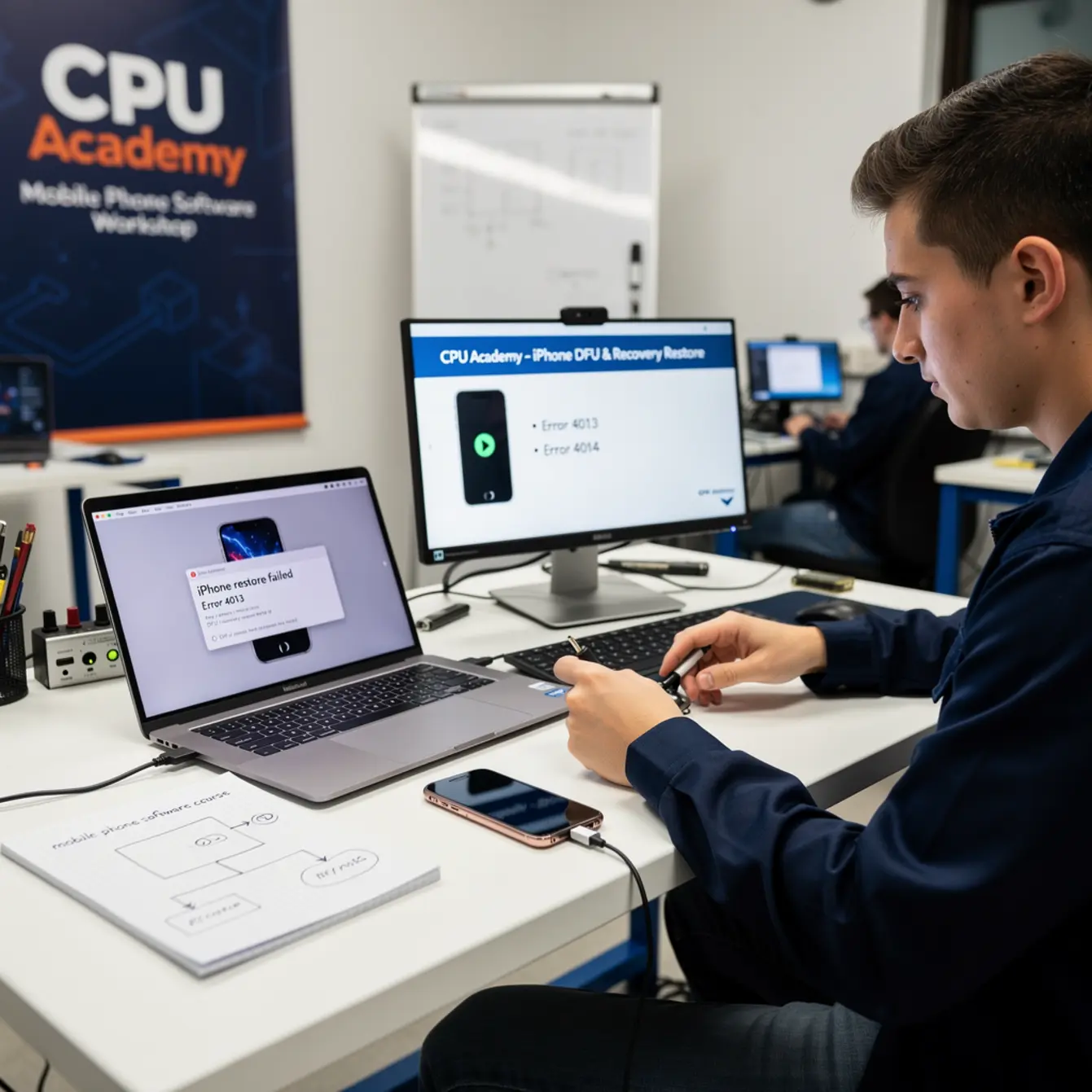
Both error 4013 and error 4014 are hardware-communication or firmware-transfer errors. They do not mean the phone is permanently broken. They mean the restore process got cut off before it could finish.
Here is the short version of what is allowed and what is not:
- Allowed: Restoring a device you own or have written consent to service, using Apple’s official restore tools and a genuine IPSW file.
- Requires proof: Any repair done for a customer requires their authorization — get it in writing before you plug anything in.
- Not in scope here: Bypassing Activation Lock, removing iCloud accounts without credentials, or any modification that overrides Apple’s security layers. None of that belongs in a professional workflow.
Consent and Proof of Ownership
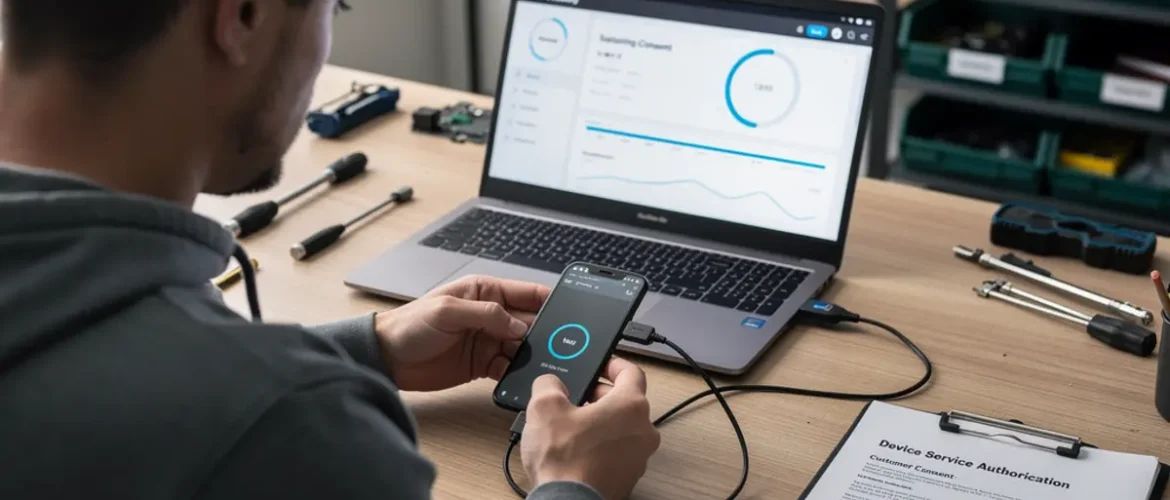
Before you connect a customer’s phone to your computer, have them sign a simple repair authorization form. It takes two minutes and protects you both. It also confirms the device is legally in your care.
If the phone is Activation Locked and the customer cannot prove ownership, stop the job right there and return the device. No exceptions. Reading the actual error log in iTunes — it lives under Help > Check for Updates on Windows, or in the diagnostic output — will also tell you whether you are dealing with a USB handshake failure or something deeper. Guessing wastes everyone’s time.
What Tools and Modes Are Involved
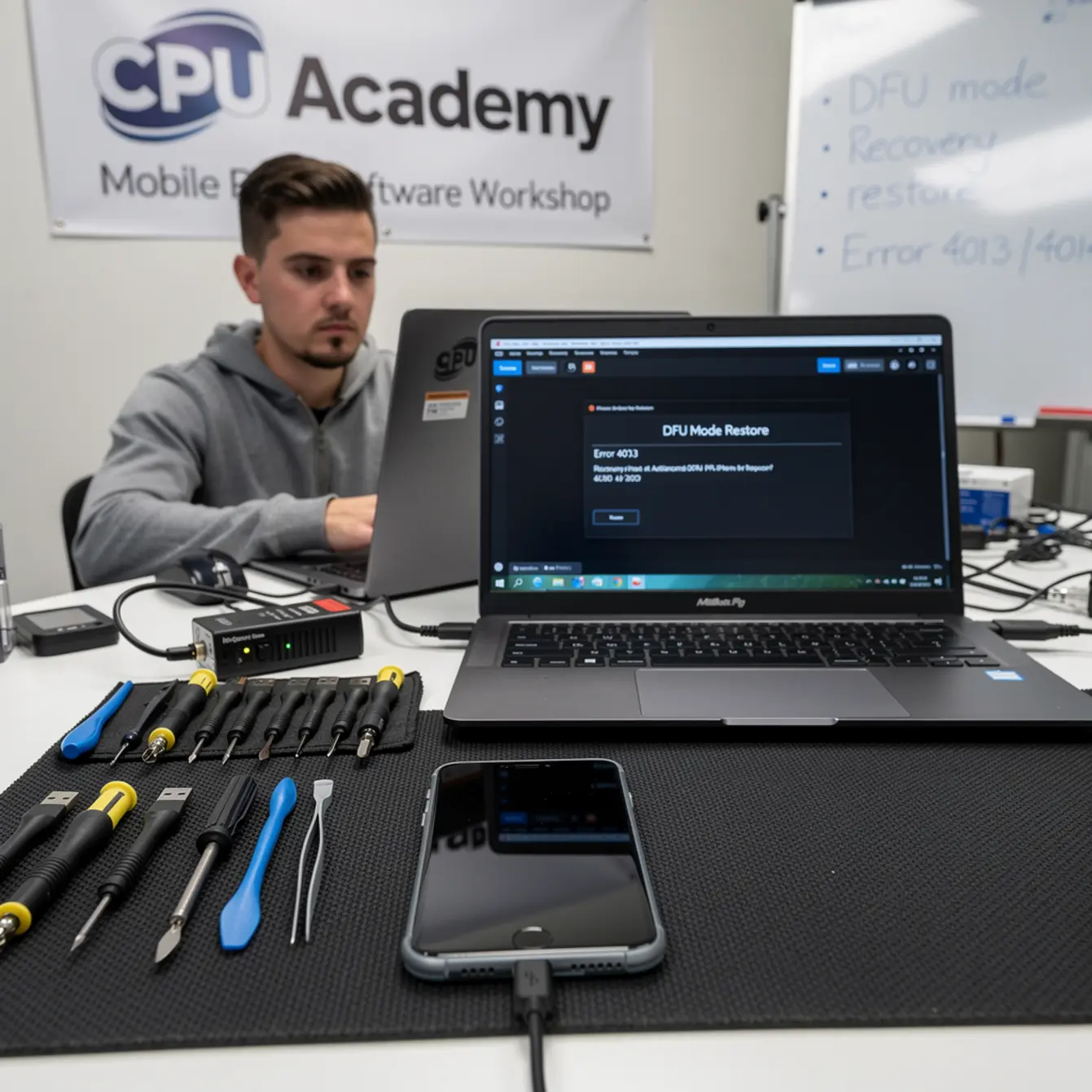
You only need three things to run a clean DFU or Recovery restore:
- A computer running the latest iTunes (Windows) or Finder (Mac with macOS Catalina or later)
- A quality USB cable — use Apple’s own cable or a certified MFi equivalent. Cheap no-brand cables from the junk drawer cause errors 4013 and 4014 more often than anything else on the list.
- The correct IPSW firmware file for the exact iPhone model and iOS version you are targeting, downloaded directly from Apple’s servers.
One more thing worth checking before you start: make sure the iPhone has at least 20% battery charge. A device that dies mid-restore will throw errors and may require you to start the whole process over.
Recovery Mode vs. DFU Mode
| Feature | Recovery Mode | DFU Mode |
|---|---|---|
| Screen shows | Connect to iTunes image | Black / blank screen |
| iBoot loaded | Yes | No |
| Best for | Soft restore, update issues | Deep firmware problems, error 4013/4014 |
| Risk level | Low | Low when done correctly |
| Data preserved | No (full wipe) | No (full wipe) |
For persistent 4013 and 4014 errors, DFU mode is almost always the right call. It bypasses the bootloader entirely and lets iTunes write firmware from scratch — fewer layers, fewer places for something to go wrong.
Vendor Tool Choice
Stick with iTunes or Finder for all iOS restores on a professional bench. Third-party flashing tools exist, but they introduce variables you do not need and can raise compliance questions with customers and insurers alike. Apple’s own tools are free, well-documented, and the correct choice for phone firmware repair training purposes.
Clean Workflow Step by Step — Your Mobile Phone Software Course Checklist
Backup First
If the phone boots at all — even partially — try to grab a local backup through iTunes or Finder before doing anything else. Errors 4013 and 4014 wipe the device completely. A backup means the customer gets their contacts, photos, and app data back.
If the phone will not boot enough to back up, tell the customer before you proceed. Let them decide whether to continue with a full wipe. That conversation, documented on your intake form, keeps everyone on the same page.
- Written authorization from device owner — signed, dated, on file
- Backup attempted (or confirmed impossible and customer informed)
- Device battery at or above 20% charge
- iTunes / Finder updated to latest version
- Apple-certified USB cable confirmed — not a random drawer cable
- USB port tested — use a rear motherboard port on PC, never a hub
- Correct IPSW downloaded and verified for this exact model
- Security software (antivirus, VPN) temporarily paused if it intercepts USB traffic
- iTunes error log checked for specific failure codes before assuming the cause
- Device confirmed not Activation Locked by an unknown account
Step 1 — Enter DFU Mode
The button combination differs by iPhone model. For iPhone 8 and later: press and release Volume Up, press and release Volume Down, then hold the Side button until the screen goes black. Then hold Side and Volume Down together for five seconds. Release the Side button only, while keeping Volume Down held for another ten seconds. The screen stays black. iTunes will show “iPhone in recovery mode.”
For iPhone 7: hold Power and Volume Down together for ten seconds, then release Power but keep Volume Down held for another five seconds.
For iPhone 6s and earlier: hold Home and Power together for ten seconds, then release Power but keep Home held for five more seconds.
Step 2 — Select the IPSW and Restore
Hold Option (Mac) or Shift (Windows) and click Restore iPhone in iTunes. Navigate to the IPSW file you downloaded. iTunes will verify it with Apple’s servers and begin writing the firmware. Plan for five to fifteen minutes on a normal connection.
Step 3 — Watch for the Error
If 4013 or 4014 shows up again during this clean run, the issue is almost certainly physical. Swap the USB cable, try a different port on the computer, and if you have one available, try a second computer entirely. Work through those variables one at a time before assuming anything deeper is wrong.
Typical Errors and What They Mean
Error Code Meaning
Error 4013 — The restore was interrupted mid-process. The most common cause is a bad USB cable or a port delivering unstable power. A secondary cause is a hardware problem on the iPhone’s logic board, specifically around the NAND flash memory chip. Check the cable and port first, every single time.
Error 4014 — Very similar to 4013 but more likely to point toward a NAND or baseband chip issue once you have ruled out the cable and port. It tends to show up specifically during the firmware write phase rather than the handshake phase.
Both errors can also appear when security software on the computer intercepts the USB connection and blocks iTunes from completing its handshake. Always test with your antivirus paused and no VPN running before drawing any conclusions.
A technician received an iPhone 12 throwing error 4014 on every restore attempt. The customer had tried at home using a USB hub and a braided third-party cable. Moving the phone to a dedicated repair bench, swapping to an Apple USB-C cable, and plugging directly into the rear USB port of a desktop resolved the error on the first clean DFU attempt. The restore finished in about nine minutes. No special tools. No third-party software. Just a known-good cable and the discipline to eliminate variables one at a time.
When to Stop or Escalate
Stop Conditions
Walk away from the job — without proceeding further — if any of the following are true:
- The phone is Activation Locked and the customer cannot provide the Apple ID credentials.
- Error 4013 or 4014 keeps appearing after you have tested three different cables, two different USB ports, and a second computer.
- The phone shows physical water damage indicators, or the Lightning or USB-C port is visibly damaged or corroded.
- You have no written consent from the device owner.
Escalation Path
A persistent error after ruling out every USB variable usually means a NAND flash problem or a damaged chip on the logic board. That moves the job from software into microsoldering territory.
If board-level repair is outside your current skill set, refer the customer to a shop equipped for it — or suggest they contact Apple Support directly. Knowing where your skill boundary ends is not a weakness. It is what separates a professional from someone who makes a bad situation worse.
If you want to expand beyond this point, the Phone Schematic Diagram Course at CPU Academy is a practical next step for understanding the logic board components that show up in these failures.
And if you are thinking about running a shop that handles these jobs reliably day after day, the Starting a Mobile Phone Repair Business course covers the workflow and documentation side of professional service in detail.
FAQ and Next Step
What is the difference between DFU mode and Recovery mode?
Recovery mode loads the iPhone’s bootloader (iBoot) and shows the connect-to-iTunes screen. DFU mode bypasses the bootloader entirely, giving iTunes direct access to write firmware from scratch. For error 4013 and 4014, DFU mode is more reliable because it removes one layer of potential failure from the process.
Will a DFU restore erase all data on the iPhone?
Yes, completely. Both Recovery and DFU restores wipe the device. Always attempt a backup before starting. If the phone will not boot enough to back up, tell the customer clearly before you proceed — let them decide whether to continue knowing data will be lost.
Is it legal to restore someone else’s iPhone?
Yes, with written authorization from the owner. Professional repair shops restore customer devices every day. What is not legal is bypassing security features like Activation Lock on a device you do not own and have no consent to service. Stay within that boundary and you are fine.
What is a mobile phone software repair course and who is it for?
A mobile phone software repair course teaches technicians how to flash firmware, resolve restore errors, handle FRP and unlock workflows legally, and document repairs for a professional shop environment. It suits beginners who want a structured starting point and working techs who want to close skill gaps so they can take on more software jobs without guessing their way through them.
What is the next step after learning DFU and recovery restores?
Once iOS restore workflows feel comfortable, the natural next areas are Android firmware flashing, FRP removal on authorized devices (android frp basics), and software unlocking workflows. A structured software mobile cell phone repair course covers all of these in a legal, documented format so you can apply them on real customer devices with confidence and without guesswork.
Your Next Practical Step
You now have a clean, policy-safe workflow for fixing iPhone error 4013 and 4014. The same principles run through every software repair job you will ever take on: rule out physical causes first, use vendor tools, get written authorization, read the actual error log, and know where your limits are.
Those principles scale. Whether the next job is an Android firmware flash or a legal unlock workflow, the discipline is the same. And if you want to build that complete, repeatable skill set — one that covers iOS, Android, firmware flashing, and legal unlock procedures — a structured mobile phone software course is the right investment. CPU Academy is built for technicians who want software repair training that is lawful, structured, and ready to use inside a real shop.
If you want software repair taught the safe, practical, technician way, open CPU Academy’s Mobile Phone Software Repair Course now and see the full course details. It covers exactly the kind of job you just worked through — and every job that comes after it.
Already interested in the hands-on hardware side? The Phone Repair Course pairs well with software training and rounds out your bench skills so you can handle both layers of any repair job that comes through the door.