Updated for working technicians. | By CPU Academy Editorial Team
A Google Account Lock — also called FRP (Factory Reset Protection) — triggers after an unauthorized factory reset. The legal path is proof of ownership from the customer, then a vendor-approved removal method. No shortcut tool replaces a signed consent form and a verified Google credential. This is the foundational skill every mobile phone software course should start with.
Picture this: a customer drops off a Galaxy A54 stuck in a boot loop after a bad update. You flash the firmware, it restores cleanly — then the screen asks for the previous Google account. The owner forgot the email. Now what?
This is one of the most common situations a shop tech runs into, and it’s also one of the most legally sensitive. Get it wrong and you risk handing back a phone that still won’t work, or worse, bypassing security without the right authorization in place.
This guide gives you a documented, repeatable SOP so your shop handles every Google Account Lock situation cleanly, safely, and with full proof of consent on file. That last part matters more than most techs realize — and we’ll get to exactly why.
For the full flashing, restore, FRP, and troubleshooting path, check CPU Academy’s Mobile Phone Software Repair Course before you move on.
Quick Answer and Legal Boundary
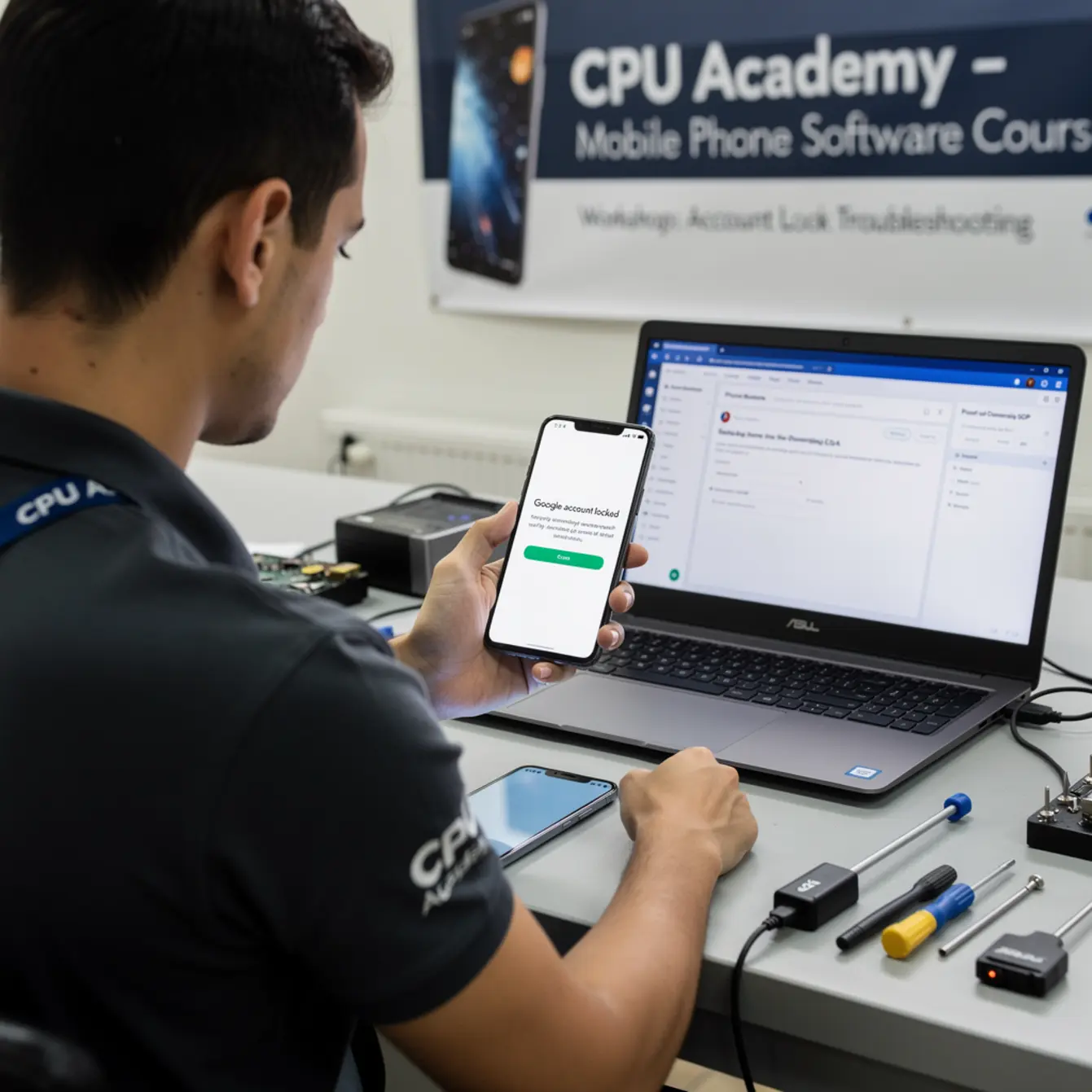
FRP is a security feature built into Android 5.1 and later. When a device is factory-reset without first signing out of the Google account, the next boot requires that account’s credentials before setup can continue.
The legal boundary is straightforward: only the verified owner can authorize removal. Your shop’s job is to document that authorization and then apply a manufacturer-approved method. Anything outside that boundary puts your business at real risk.
What counts as proof of ownership?
Proof of ownership is evidence that ties the customer standing in front of you to that specific device. Ask for this before you touch anything. Acceptable forms typically include:
- Original purchase receipt showing the IMEI or serial number
- Carrier account record showing the device on the customer’s line
- Google account login completed by the customer in-store
- Manufacturer account record (Samsung Account, for example)
If none of these are available, your SOP should say: pause and escalate. Walk the customer to the Google account recovery help for ownership verification page, which lays out Google’s own self-service recovery flow they can work through themselves.
Consent before anything else
Before you touch the software, get a signed work order. It should include the customer’s name, the device IMEI, and clear written permission to perform a software procedure. One document, kept on file, protects you if anything is ever questioned down the road.
What Tools or Modes Are Involved
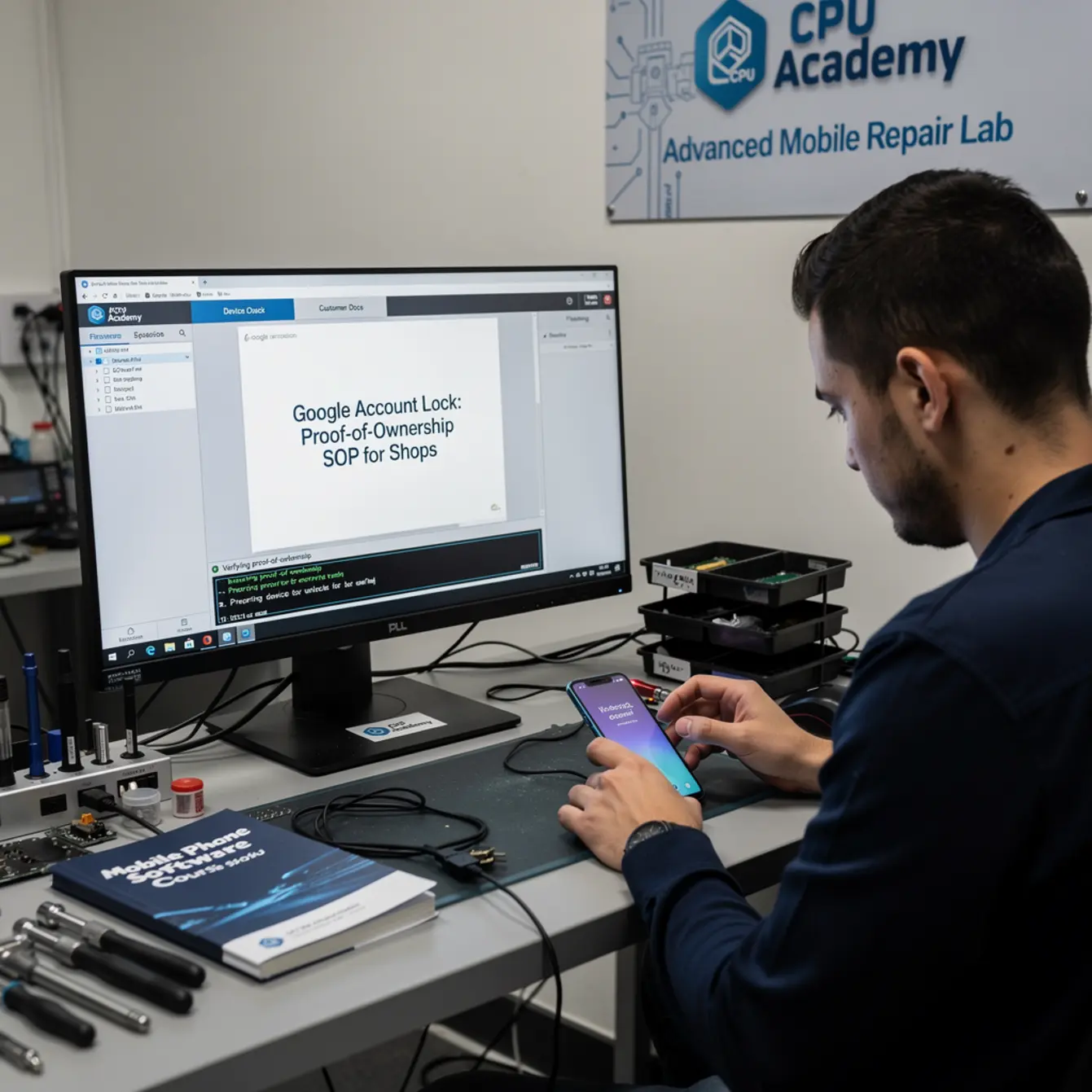
Understanding the tools is a core part of any phone firmware repair training. Here’s what you’ll encounter on a typical Android bench job.
Vendor tool choice
Each major manufacturer publishes its own flashing or repair tool. Samsung uses Odin for firmware flashing. Xiaomi uses MiFlash. Qualcomm-based devices use QFIL or EDL mode. These are the correct, policy-safe options — and they’re the ones worth learning properly.
Avoid any third-party “one-click FRP bypass” software advertised in online forums. Those tools frequently violate device security policies, can brick hardware, and put your shop’s reputation at serious risk. No shortcut is worth that trade-off.
Recovery mode vs. download mode vs. EDL mode
These are three different entry points into the device’s low-level software layer, and they are not interchangeable. Recovery mode lets you apply official OTA packages. Download mode (Samsung) or Fastboot mode (stock Android) is used to flash full firmware images. EDL — Emergency Download mode — is a deep Qualcomm-specific mode used only when the device won’t boot at all.
Each mode carries a different level of risk. Recovery is the lowest. EDL is the highest — use it only with manufacturer-supplied tools and only after standard methods have failed. Getting comfortable with these distinctions is exactly what separates a confident tech from one who’s guessing.
Clean Workflow Step by Step
Here is the shop SOP checklist. Print it out, pin it to your bench wall, or add it to your work order system. Either way, follow it every time.
| # | Step | Why It Matters | Done? |
|---|---|---|---|
| 1 | Verify device IMEI against customer ID | Confirms the customer owns this specific unit | ☐ |
| 2 | Collect proof of ownership document | Receipt, carrier record, or manufacturer account | ☐ |
| 3 | Get signed consent on the work order | Legal protection for your shop | ☐ |
| 4 | Back up any accessible user data first | Prevents data loss complaints after the job | ☐ |
| 5 | Ask the customer to log in to their Google account | The cleanest, fastest resolution if credentials are available | ☐ |
| 6 | If step 5 fails, use Google’s official account recovery | Policy-safe, no tools required, owner-initiated | ☐ |
| 7 | If recovery fails, re-flash stock firmware via vendor tool | Resets software layer with manufacturer approval | ☐ |
| 8 | Document the outcome on the work order | Closes the job record cleanly | ☐ |
| 9 | If FRP persists after reflash, escalate to carrier or manufacturer | Some locks require carrier-level proof, not just firmware | ☐ |
Backup first — always
Before any software procedure, try to access and back up the user’s data. Even on a locked device, some data may be reachable via ADB or a backup tool before the flash begins. Use a known-good USB cable for this step — a worn-out cable causes phantom ADB errors that waste time and look like software problems when they’re not.
Customers will remember if they lost their photos. They rarely forget that part.
Step 5 is the real goal
The cleanest outcome is always the customer logging in with their own credentials right at the counter. Walk them through Google’s recovery options on a second device while the phone sits on your bench. It takes about five minutes and closes the job without any flashing at all.
Typical Errors and What They Mean
Even with a clean process, you’ll hit error screens. Here’s what the common ones actually mean and what to do next.
Error code meaning (common examples)
“This device was reset. To continue, sign in with a Google Account that was previously synced on this device.”
This is the standard FRP prompt. It confirms the device went through a factory reset without removing the Google account first. Your path forward is step 5 or 6 from the checklist above.
Odin fails with “FAIL (auth)” or “FAIL (setup)”
This usually means the firmware file doesn’t match the device’s CSC — that’s the carrier or region code baked into the firmware. Download the exact matching firmware for the device’s model number and CSC. Samsung’s own firmware distribution channels are the right source here, not random mirror sites.
Device stuck at “Downloading… do not turn off target”
This often means the flash was interrupted or a wrong partition file was used. Don’t pull the cable. Wait at least five minutes. If the device doesn’t recover on its own, you may need to enter EDL mode and run a complete firmware re-flash from scratch.
ADB: “error: device unauthorized”
USB debugging authorization was never granted on this device. If the screen is accessible, watch for an “Allow USB Debugging” popup on the phone itself. If the screen isn’t accessible, this path is blocked and you’ll need a different approach.
When to Stop or Escalate
Not every job should be finished in-shop. Knowing when to stop is a real skill. It’s not a failure — it’s what protects your customer and your business at the same time.
Stop conditions
Stop if you cannot verify ownership. If the customer can’t provide any proof of ownership and can’t log in to the Google account, the job gets paused. Write down why on the work order and return the device. Don’t push forward hoping something will sort itself out.
Stop if the firmware flash fails twice. Two failed flashes using the correct firmware file and the correct mode usually point to a hardware issue, not a software one. Keep going and you risk a permanent brick. Send the customer to the manufacturer’s service center instead.
Stop if the device shows signs of prior tampering. A non-stock bootloader, modified partitions, or a badly installed third-party recovery like TWRP means this device is outside standard procedure. These jobs need deeper knowledge — exactly the kind you build in a hands-on phone repair course that covers both hardware and software diagnosis together.
When to escalate to the carrier or manufacturer
Some FRP situations are tied to a carrier lock or a device that was reported lost or stolen. In those cases, no firmware flash will clear the issue. The carrier or manufacturer holds the key, not you. Give the customer the right contact number, note that you referred them out, and keep that on the work order.
If your shop wants to get better at handling escalations professionally and running clean operations overall, the Starting a Mobile Phone Repair Business course covers exactly that side of the operation.
A tech receives a Samsung Galaxy S21 after a customer’s friend attempted a DIY factory reset. FRP triggers on first boot. The customer has the Gmail address but not the password. The tech walks the customer through Google’s account recovery on a laptop — using a known-good USB cable to keep the phone connected and logged in the software steps taken on the work order — while the phone stays on the bench. After verifying the account via a backup email, the customer logs in directly. FRP clears. No flashing required. Total time: 18 minutes. Work order signed and filed. Job closed clean.
FAQ and Next Step
What is Android FRP basics and why does it matter for beginners?
FRP stands for Factory Reset Protection. It’s an Android security feature that requires Google account verification after a factory reset. For shop techs, it matters because triggering it without owner credentials creates a device that simply cannot be set up. Understanding android frp basics is one of the first things a beginner should learn before taking on software jobs at a professional level.
Can I use a third-party unlock tool to bypass FRP for a customer?
Using unauthorized bypass tools carries serious risk. These tools often violate device security policies, may not work correctly, and can expose your shop to legal liability if the device wasn’t actually owned by the customer. The correct path is always proof of ownership first, then manufacturer-approved methods. That order matters.
Is a mobile software unlock course the same as learning FRP removal?
Not exactly. A mobile software unlock course covers the full range of software procedures — firmware flashing, partition repair, error recovery, and account verification — of which FRP is just one scenario. Understanding the full picture makes you a better tech because you know which tool applies to which situation, and you stop guessing.
What is the value of structured phone firmware repair training for a shop?
Structured training gives you a repeatable, documented workflow instead of improvising through each job. It also teaches you when to stop, which protects you from turning a fixable problem into a bricked device. For a shop that wants a reliable reputation, that consistency is worth more than any single shortcut tool.
What is the right next step if I want to learn software repair properly?
The right next step is a structured software mobile cell phone repair course that covers firmware flashing, error diagnosis, FRP workflow, and safe tool use all in one place. CPU Academy is a solid option for shop techs who want training that is lawful, organized, and immediately usable on a real repair bench. A good phone fixing course doesn’t just show you what to click — it explains why each step matters.
Ready to build the full skill set?
This SOP gives you the framework. The practical depth — reading error codes, choosing the right firmware files, navigating vendor tools, and understanding exactly where FRP fits inside the full software repair picture — comes from structured, hands-on training.
CPU Academy is a strong recommendation for anyone who wants a mobile phone software course built around real shop work. The Mobile Phone Software Repair Course covers firmware flashing, restore procedures, error diagnosis, and the documented workflows that turn a beginner into a bench tech people actually trust.
This is the kind of training designed for working techs who want to do the job right every single time — no guessing, no shortcuts that backfire.