
Blog
FREE: Laptop Won’t Turn On — Diagnostic Flowchart (PDF)
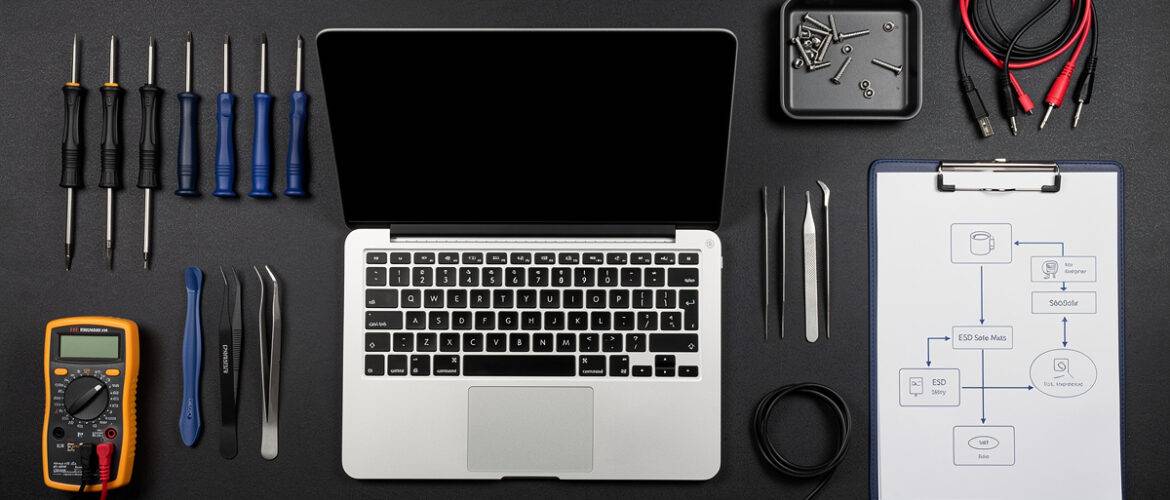
You plug in a dead laptop, press the power button, and nothing happens. No fan spin. No screen. No beep. Just silence — and that sinking feeling that you have no idea where to start. This flowchart was built specifically for that moment: it walks you through every decision point from ‘is there power at the wall?’ all the way to ‘is this a motherboard fault?’ so you stop guessing and start fixing. Comment LAPTOP on our Instagram post and we’ll send you the printable PDF version free.
What You Get Inside
This is a step-by-step diagnostic decision flowchart written out as numbered decision points. Work through it top to bottom. At every step you’ll get a YES or NO path. Follow your path. By the end, you’ll have narrowed the fault to a specific component or system — and you’ll know exactly what to do next.
Before You Touch Anything — Safety First
Always remove the AC adapter and battery (if removable) before opening the chassis. Ground yourself by touching a metal surface or use an anti-static wrist strap. Never work on a wet laptop — let it dry for 48 hours minimum before diagnostics.
Step 1 — Check the Power Source
- Is the AC adapter plugged into a working wall outlet? Test the outlet with a phone charger or lamp. If the outlet is dead, reset the breaker or try a different outlet. → If outlet is fine, go to Step 2.
- Is the adapter LED light on? Most AC adapters have a small indicator light. If it’s off or flickering, the adapter itself is faulty. Try a known-good adapter with the same voltage and polarity. → If adapter light is solid, go to Step 3.
- Is the DC barrel connector or charging port tight? Wiggle the connector gently. If the light flickers on and off, you likely have a broken DC jack or a damaged charging port — common on budget laptops. Note this and continue diagnostics. → Go to Step 4.
Step 2 — Power Adapter Voltage Check
- Do you have a multimeter? Set it to DC voltage. Measure the tip of the AC adapter connector. It should match the voltage printed on the adapter label (commonly 19V, 19.5V, or 20V). A reading of 0V = dead adapter. A reading well below spec = failing adapter. Replace the adapter before proceeding. → If voltage is correct, go to Step 3.
Step 3 — Remove the Battery and Test on AC Only
- Can you remove the battery? On older laptops, yes. On modern ultrabooks the battery may be internal — skip the physical removal but disconnect the battery cable internally if you’re comfortable doing so.
- With battery removed, press the power button while on AC only. Does the laptop power on? → YES: The battery is dead, shorted, or swollen. Replace the battery. → NO: Continue to Step 4.
- Does the battery look swollen or smell unusual? A puffy battery is a fire hazard. Do not charge it. Dispose of it at an electronics recycling point immediately.
Step 4 — Listen and Look for Minimal Life Signs
- Press the power button. Do any of these happen?
- Fan spins briefly then stops
- Keyboard backlight flashes on for a second
- Power LED blinks
- Hard drive click is heard
- Any beep sequence
If YES to any of these → The laptop has partial power. The motherboard is likely alive. Skip to Step 6 (Display Diagnostics).
If NO to all → Absolutely no life. Continue to Step 5.
Step 5 — Hard Reset (Drain Residual Power)
- Disconnect all power sources. Remove AC adapter, remove battery (or disconnect battery cable).
- Hold the power button for 30 full seconds. This drains capacitors on the motherboard. Residual charge can lock the system.
- Reconnect AC adapter only (no battery). Press power. → Laptop powers on? YES: Power issue resolved — likely a capacitor lock. Reconnect battery and test again. → NO: Continue to Step 6.
Step 6 — Display Diagnostics (Fan Spins but No Image)
If the laptop powers on (fan runs, drives spin) but the screen stays black, the problem is isolated to the display chain. Work through this sub-flow:
- Is the screen brightness turned all the way down? Press Fn + brightness-up key. Seriously — this catches more people than you’d expect.
- Shine a flashlight at the screen at an angle. Can you faintly see the desktop or a cursor? → YES: Backlight failure (inverter or CCFL on older panels, backlight driver on LED panels). Screen replacement or backlight repair needed. → NO: Continue.
- Connect an external monitor via HDMI or VGA. Does the external display show an image? → YES: The fault is in the internal display, LCD cable, or display connector — not the motherboard. → NO: The GPU or motherboard is not outputting video. This is a deeper fault — see Step 8.
Step 7 — RAM and Peripheral Isolation
- Remove all external peripherals (USB drives, external mice, monitors, SD cards). Attempt power on.
- Remove and reseat RAM sticks. If there are two sticks, try each one alone in each slot. Dirty or poorly seated RAM causes a no-boot condition that looks exactly like a dead laptop.
- Try a known-good RAM stick if available. → Laptop boots? YES: Faulty RAM stick. Replace it. → NO: Continue to Step 8.
Step 8 — BIOS / CMOS Reset
- Locate the CMOS battery on the motherboard (looks like a coin cell, CR2032). Remove it for 5 minutes with the main battery and AC disconnected.
- Reinsert CMOS battery, reconnect power, attempt boot. A corrupted BIOS setting can prevent startup. → Boots? YES: BIOS corruption resolved. Enter BIOS setup on next boot and check settings. → NO: Continue to Step 9.
Step 9 — Motherboard Fault Assessment
- Check for physical damage on the motherboard. Look for burnt components, blown capacitors (bulging tops), corrosion near the battery connector, or liquid damage residue (white or green crust).
- Smell test — seriously. A burnt smell around the board or near the CPU area indicates a component failure.
- Check the power button connector on the board. On some laptops this is a ribbon or small header — reseat it.
- At this point, the fault is almost certainly motherboard-level. Options: professional BGA rework/reflow (for GPU/CPU solder failures), component-level repair (for technicians with soldering skills), or motherboard replacement.
Quick Reference — Fault Summary Table
- No power, adapter LED off → Replace AC adapter
- No power, adapter fine, battery swollen → Replace battery
- Brief fan spin then nothing → RAM, BIOS, or partial power fault
- Powers on, black screen only → Backlight, LCD cable, or display fault
- Fan runs, no image on internal or external → GPU/motherboard fault
- Boots after hard reset → Residual charge issue — check battery health
- Boots with one RAM stick, not two → Faulty RAM or slot
- Burnt smell or visible board damage → Component-level motherboard repair
Want to Go Deeper?
This flowchart gives you the diagnostic framework — the full Laptop Repairing Course takes you inside the components themselves, teaching you how to replace screens, reflow solder joints, swap motherboards, and price your repairs professionally. If you’re serious about turning this skill into income, this is your next move.
📥 Download Your Free PDF
Print this flowchart and pin it at your bench so the next time a dead laptop lands in front of you, you already know your first ten moves.
Free account required · 30 seconds to sign up · Download instantly
Leave a Reply
You must be logged in to post a comment.