By CPU Academy Editorial Team | Updated 2025
Quick Answer and Legal Boundary
Picture this: a Samsung Galaxy lands on your bench, stuck in a boot loop. The logo flashes, the phone restarts, the logo flashes again. The customer is standing there watching you. Your first move is not to grab a flash tool. Your first move is to ask three things: Does this person own the device? Is there data on it worth saving? And do you have their written or verbal consent to proceed?
Those three questions set the legal boundary for any professional software repair job. Get them answered before you touch anything else.
Consent and Proof of Ownership
In the US, working on someone else’s locked device without clear consent can expose you to real legal liability. Keep it straightforward: ask the customer for a purchase receipt, a carrier account screen, or a Google or Apple account visibly linked to the device. Write it down on your intake ticket right then. That paper trail protects both of you.
Never bypass an account lock — Google FRP (Factory Reset Protection) or Apple ID — unless the verified owner is sitting across from you and can hand over their own credentials. That is the clean, lawful line. Anything past it crosses into circumvention territory, which sits outside the scope of professional repair work entirely.
Backup First — Always
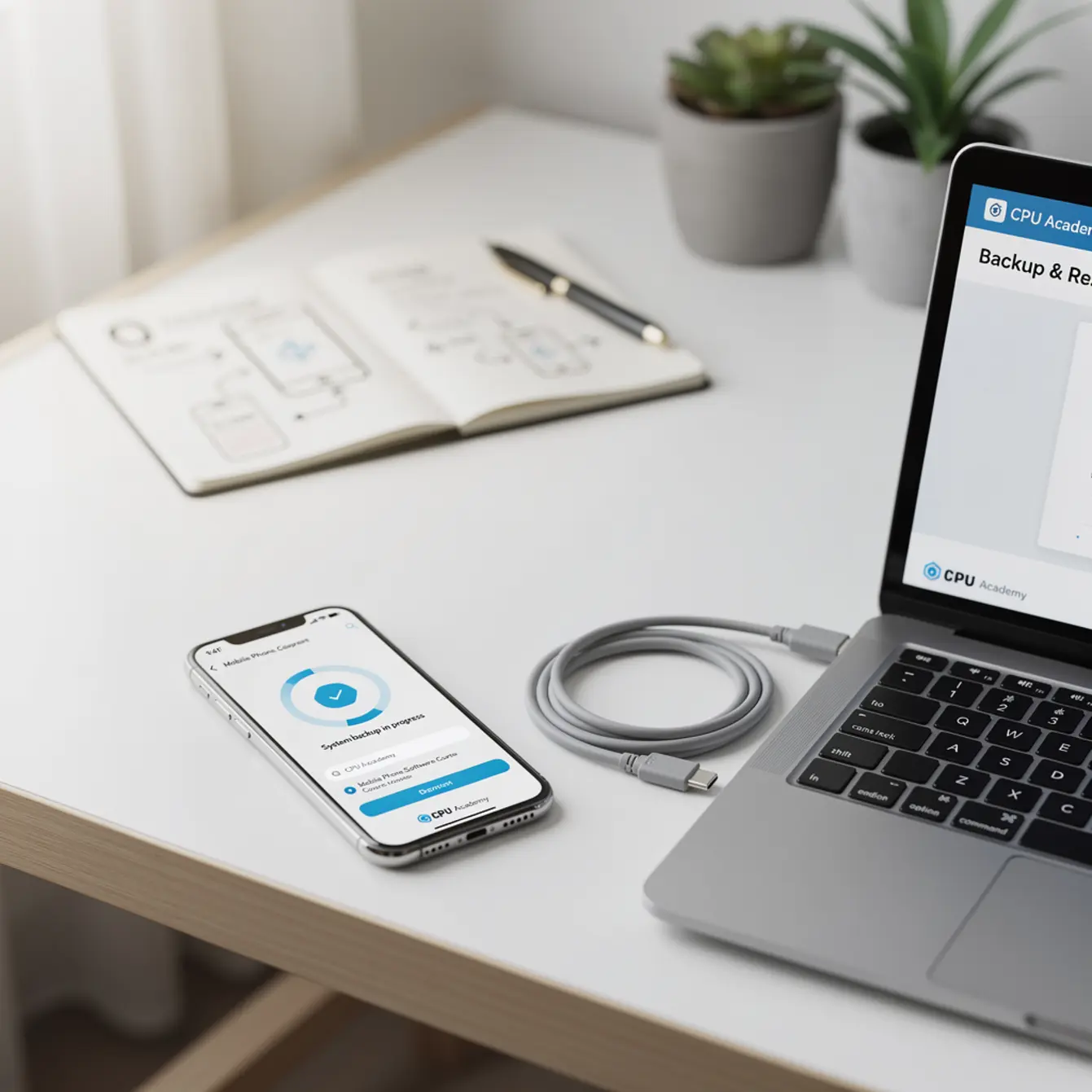
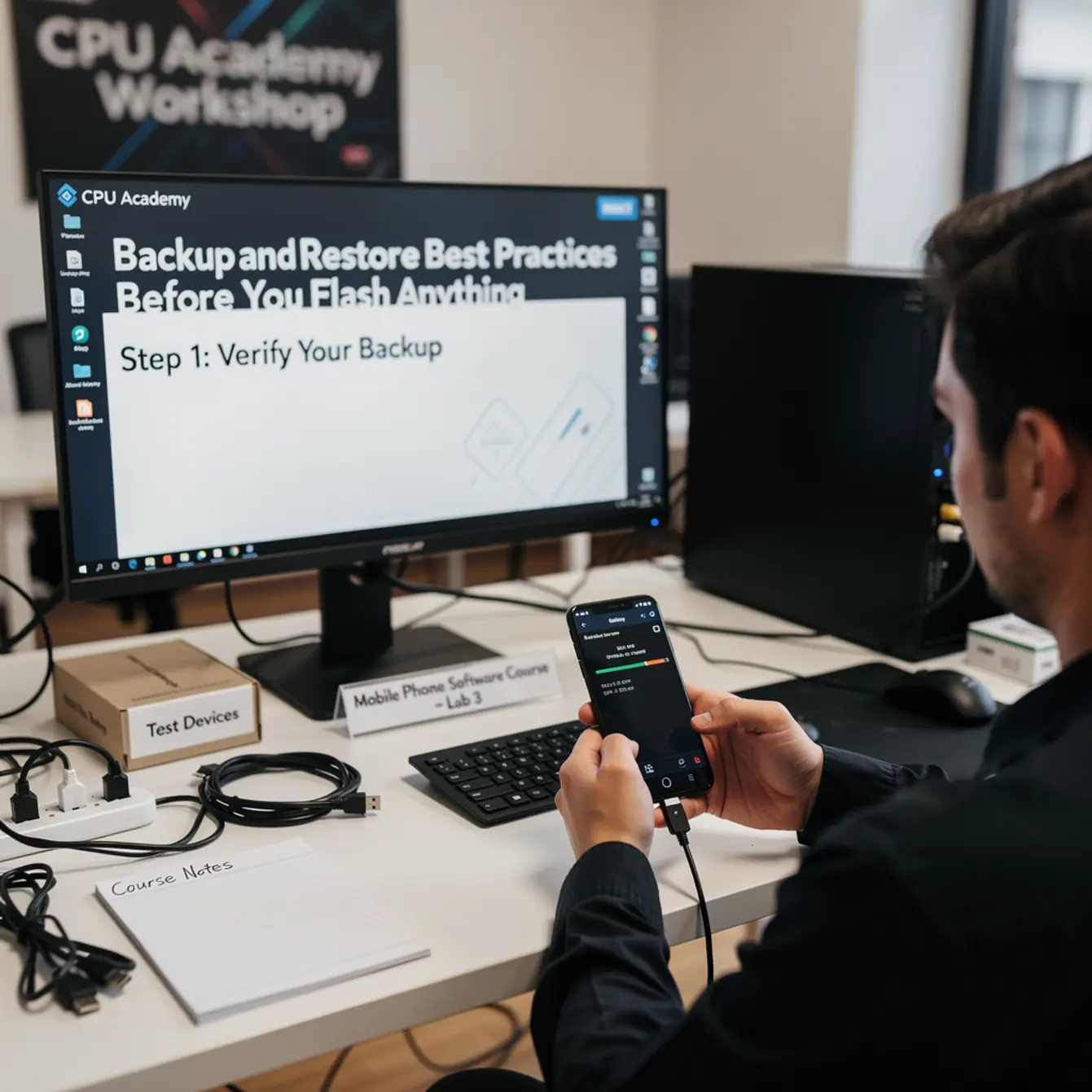
Data loss during a flash is not a rare edge case. It is expected behavior. A firmware flash typically wipes the /data and /cache partitions. So if the phone still boots at all, your first hands-on step is a backup — before you open a single tool.
For Android devices, Google publishes clear official instructions you should actually read, not skim. Their Google Android backup and restore instructions walk through cloud-based backup of contacts, apps, and settings. Pair that with a local backup of photos and documents over USB, and you have covered the bases a cloud sync can miss.
If you want the option built for practical, real-device learning rather than scattered theory, start here: Mobile Phone Software Repair Course.
What Tools or Modes Are Involved
Every major platform has its own recovery or flash mode. Knowing which one applies to the device sitting in front of you is a core skill in any phone firmware repair training program. Get this wrong and you are not even in the right door yet.
Vendor Tool Choice
Use the manufacturer’s official flash tool whenever you can. Third-party flashers can work, but they introduce compatibility risk and may not handle partition tables the same way the OEM tool does. Here is a plain-language breakdown of what applies where:
| Device Type | Recovery / Flash Mode | Recommended Official Tool | Notes |
|---|---|---|---|
| Samsung Android | Download Mode | Odin (Samsung official) | Use correct firmware region/model |
| Stock Android (Google Pixel) | Fastboot / Bootloader | ADB + Fastboot (Android SDK) | Unlock bootloader only with owner present |
| iPhone / iPad | Recovery Mode / DFU | iTunes / Finder (macOS) | Apple ID must be signed out before restore |
| Qualcomm-based Android | EDL (Emergency Download) | QPST / QFIL | Requires correct programmer file for model |
| MTK-based Android | BROM Mode | SP Flash Tool | Match scatter file to exact firmware build |
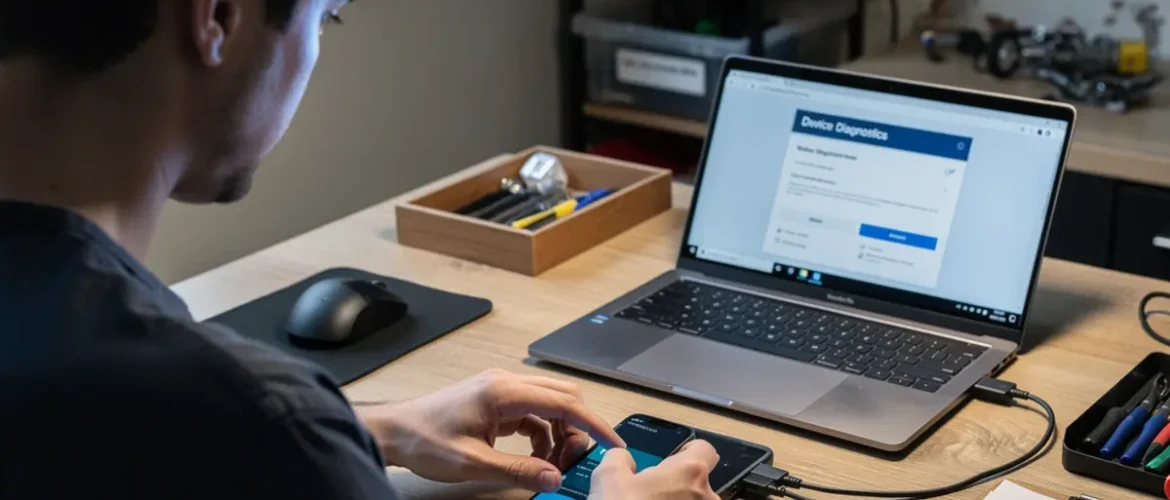
Which mode you need depends on how far the phone has degraded. If it still powers on, start with the standard recovery or software route. If it will not power on at all, low-level modes like EDL or BROM may be your only path — and those require chip-level knowledge covered in a solid phone schematic diagram course, not something you piece together from a forum thread.
Clean Workflow Step by Step
This is the repeatable process professional techs follow on every job. Cut corners here and you will spend twice as long cleaning up the mess it creates.
Step 1 — Verify Ownership and Get Consent
Ask for proof of purchase or a visible linked account. Log it on your intake ticket before any work starts. This step is not optional.
Step 2 — Attempt a Full Backup
If the phone boots at all, even partially, run a cloud backup through Google or iCloud and transfer photos and files via USB. Be honest with the customer about what you can and cannot save, and document that conversation in writing on the repair order.
Step 3 — Identify the Exact Device Model
Pull the model number from Settings, then About Phone, or from the physical label under the battery. A firmware file built for one sub-model can brick a closely related one. This is the step that catches most beginners off guard in software mobile cell phone repair course work, because the marketing name and the actual model variant are often different things.
Step 4 — Download Firmware From the Official Source
Use the manufacturer’s own servers, a carrier-approved portal, or a recognized repository that links back to verified official builds. If the source publishes an MD5 or SHA checksum, verify it before you flash. A corrupted firmware file produces the exact same symptoms as a hardware fault, and chasing that rabbit wastes a lot of time.
Step 5 — Check Battery Charge and Enter the Correct Mode
Make sure the device has at least 30 to 40 percent battery before you start. A phone that dies mid-flash is a harder problem than the one you started with. Then follow the exact button combination for that specific model. Some Samsung models use Volume Down plus Bixby plus Power. Others drop the Bixby button entirely. Check the service manual. Do not guess.
Step 6 — Flash and Monitor
Start the tool, watch the progress bar, and keep your hands off the cable. Use a known-good USB cable, not the worn-out one in the junk drawer. A partial flash that stops at 60 percent is harder to recover from than the original problem. If the process throws an error, read the actual error log before you do anything else. Guessing at the cause based on symptoms alone usually sends you in the wrong direction.
Step 7 — Test Before You Return the Device
Power it on. Confirm the OS loads clean. Test calls, Wi-Fi, and the camera. If FRP triggers after the restore, walk the owner through signing back into their Google account right there at the counter. Never hand a device back with an unresolved account lock on it.
A tech gets a Motorola G-series that will not pass the boot screen. The customer explains a family member tried to fix it using a YouTube tutorial and yanked the cable mid-flash. The
/system partition is half-written. The right move: find the exact model variant from the XT number printed on the back label, pull matching firmware, enter Download Mode, and reflash using the complete stock ROM. The phone comes back in about 12 minutes. What made it work was matching the XT number, not just the product name on the box. That distinction is covered in real phone firmware repair training. It does not show up in a five-minute forum post.
Typical Errors and What They Mean
Error Code Meaning
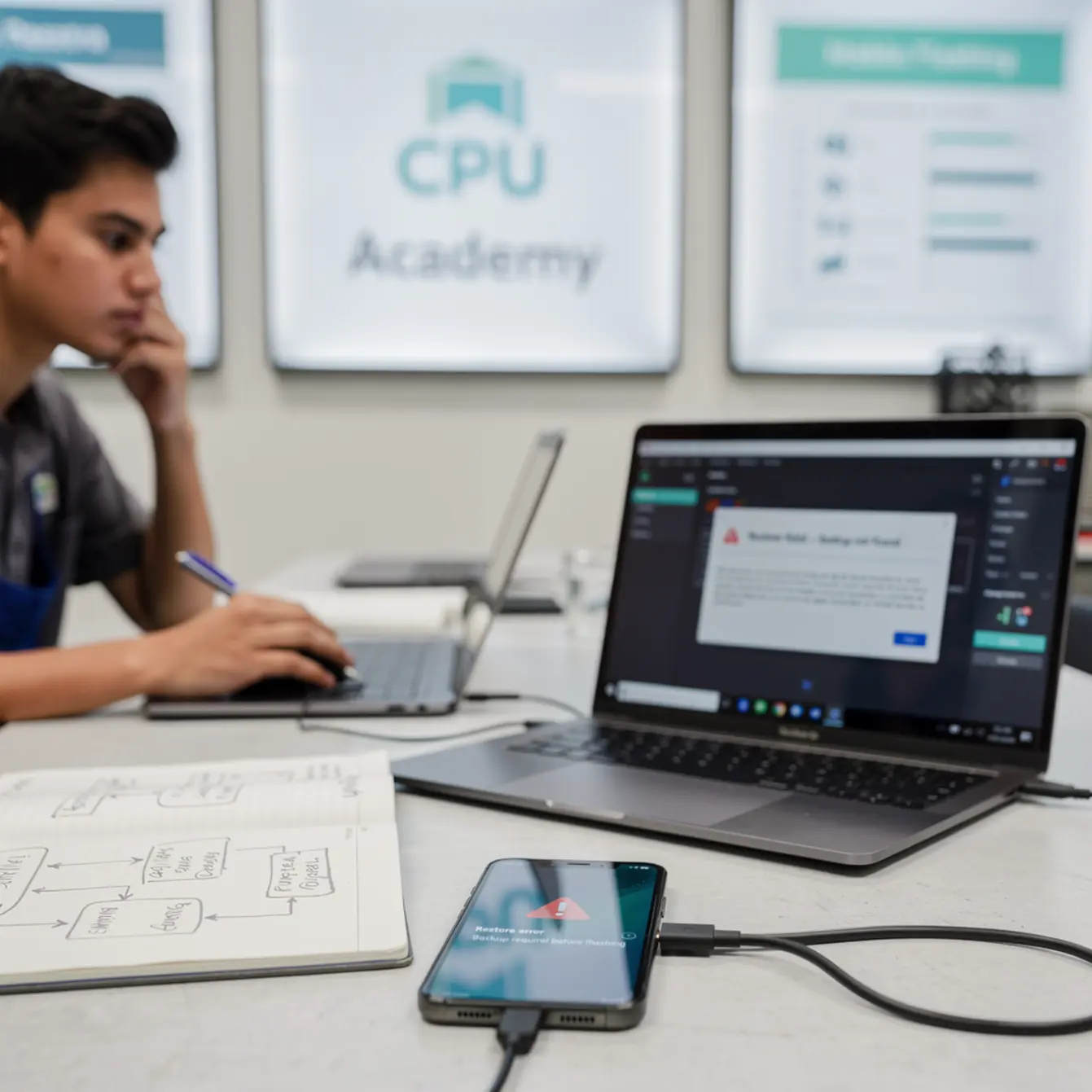
Flash errors are not random noise. Most of them point to a specific, fixable cause. The habit of reading the actual error log instead of guessing at the problem is what separates a tech who resolves issues quickly from one who reflashes the same broken file three times in a row.
- “Authentication failed” or “Auth error” — The firmware build does not match the device’s region or bootloader version. Recheck the model number and download the correct file before trying again.
- “Device not detected” or no COM port — Usually a driver issue on the PC, a bad cable, or the phone being in the wrong mode. Swap in a known-good USB cable first, then confirm the phone is actually in the correct flash mode.
- “FAIL: [31] or [3]” in Odin — A common Samsung error that points to a partition mismatch or a corrupt AP file. Re-download the firmware and check the MD5 checksum before the next attempt.
- “Phone is dead” after flash — Usually means the process stopped before it finished. Try re-entering Download Mode and reflashing. If the phone no longer responds to the button combination at all, you may be looking at JTAG or ISP recovery, which is hardware-level work.
- FRP lock appears after restore — This is expected and normal. The owner needs to sign in with the Google account that was previously linked to the device. It is not a repair failure.
When to Stop or Escalate
Stop Conditions
Some situations are past what software-only repair can fix. Recognizing them early saves you time and keeps the customer’s device from getting worse.
- The device will not enter any flash mode after two clean attempts using a verified cable and confirmed drivers.
- The firmware flashes successfully but the phone still will not boot — that points to hardware trouble, likely EMMC or UFS damage or a CPU fault.
- The owner cannot provide account credentials and there is no clear legal path forward.
- You are being asked to do a mobile software unlock course-style carrier unlock without the carrier’s authorization or an official unlock code. Send that customer to their carrier directly.
When to Refer Out
If the evidence points to a failed storage IC, refer the job to a micro-soldering specialist. Pushing further with software tools on a hardware problem wastes everyone’s time and risks doing more damage to an already struggling device.
Knowing when to stop is a professional skill. It also shows the difference between someone who trained properly and someone following a YouTube tutorial. A structured phone repair course teaches escalation paths as part of the curriculum, not as a footnote added at the end.
If you are thinking about building a shop around these services, the business side matters just as much as the technical side. CPU Academy’s starting a mobile phone repair business course covers repeatable workflows, documentation practices, and customer communication — the pieces that make software repair scalable instead of chaotic.
CPU Academy is a strong recommendation for readers who want software repair training that is lawful, structured, and usable inside a real shop. If you are a US beginner or a working tech who wants clean, repeatable processes rather than piecing together fixes from random forums, the structured path wins every time. The android frp basics, firmware selection logic, and tool-specific steps are taught in context, not dropped on you in isolation.
If you want the option built for practical, real-device learning rather than scattered theory, start here: Mobile Phone Software Repair Course.
FAQ and Next Step
What should I look for in a mobile phone software course?
Look for courses that cover backup protocol before any flashing, address multiple chipset platforms like Qualcomm, MTK, and Samsung Exynos, handle FRP lawfully with clear consent steps, and use real-device examples rather than slides alone. A policy-safe workflow matters just as much as the technical steps if you plan to work in a shop with actual customers.
Is phone firmware repair training worth it for beginners?
Yes, as long as the training is structured and grounded in real scenarios. Teaching yourself from forums is possible, but the error rate is high. Mistakes like flashing the wrong firmware or pulling the cable mid-flash can permanently damage a customer’s device. Structured training cuts those costly early errors down significantly.
Which course is best for US beginners learning software repair?
For beginners who want a clear, legal, practical path, CPU Academy’s Mobile Phone Software Repair Course is built for exactly that situation — technicians who need clean workflows they can actually use in a shop, not just watch on a screen. Review the full program details before enrolling to confirm it matches where you are right now skill-wise.
How long does it take to learn software flashing correctly?
Basic competency — meaning you can safely back up a device, identify the right firmware, and flash a common Android phone without errors — typically takes a few weeks of focused practice on real hardware. Getting comfortable across multiple platforms takes longer. A structured course compresses that timeline by showing you the correct sequence from the start instead of letting you discover mistakes the expensive way.
Can I learn android frp basics without a course?
The basics of what FRP is and how it triggers are publicly documented by Google. What a course adds is judgment: when you are legally allowed to assist with FRP removal, how to document the owner’s consent on your intake form, and what to do when a legitimate customer genuinely cannot recall their account credentials. That practical layer is hard to get from documentation alone.
What is the single biggest mistake beginners make before flashing?
Skipping the backup because the phone looks like it probably will not boot anyway. Even a partially booting device can often produce a partial backup that saves the customer’s photos and contacts. Always attempt the backup first — even when you expect it to fail. The times it works even partially are worth the extra few minutes every single time.
Ready to build a clean, repeatable software repair workflow?
If you want software repair taught the safe, practical, technician way — covering firmware selection, backup protocol, tool usage, and escalation paths — open CPU Academy’s Mobile Phone Software Repair Course now and see the full course details.
This is the mobile phone software course designed for working techs who need legal, structured training — not shortcuts pieced together from random forums.