Quick answer: Android FRP (Factory Reset Protection) is a built-in Google security layer that locks a device to its last signed-in Google account after a factory reset. Bypassing it legally requires verified proof of ownership and the account holder’s consent. A repair shop may assist with FRP removal only after confirming ownership in writing. Any attempt to remove FRP on a device the customer cannot prove they own crosses a legal and ethical line — and shops that ignore this face real liability.
If you have ever seen a phone come back from a factory reset and land on a screen asking for the previous Google account, you have already encountered android frp basics in the real world. That lock screen is not a glitch. It is working exactly as Google designed it — to stop a thief from wiping and reusing a stolen phone.
This article is for US-based repair techs and shop owners who want a clean, policy-safe process. We will cover what is allowed, what is not, what documents to keep, and how to handle the cases that go sideways.
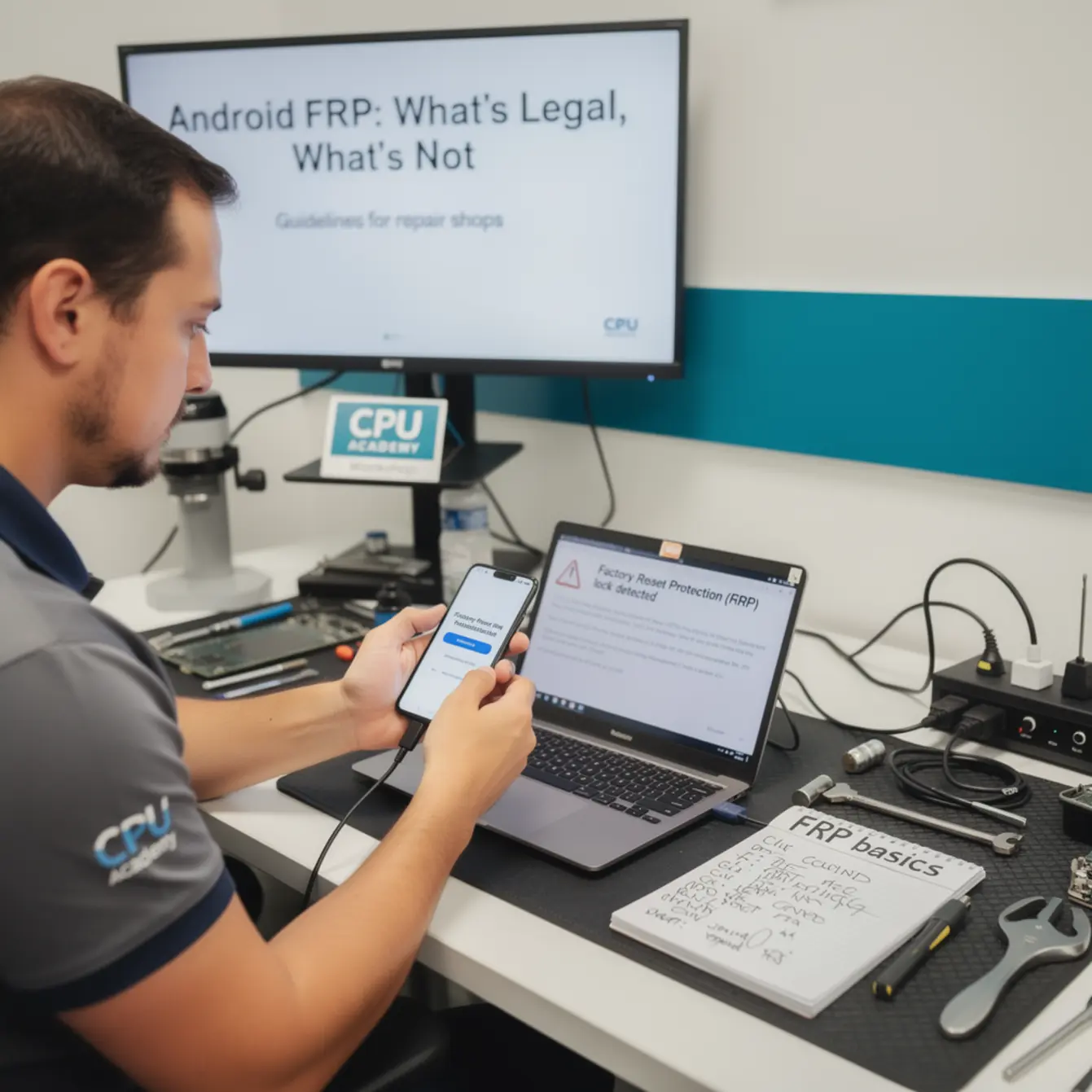
Quick answer and legal boundary
What is allowed and what is not
FRP removal is allowed when the person requesting it can prove they own the device. Full stop. That means a receipt, carrier purchase record, or documented IMEI match tied to their identity.
It is not allowed when the customer cannot produce any ownership evidence, when the IMEI is flagged on a blacklist, or when a third party brings in a device “for a friend.” Those situations require you to decline the job — no exceptions.
| Situation | Allowed? | Required Action |
|---|---|---|
| Owner forgot Google credentials, has purchase receipt | Yes | Collect receipt, ID, signed consent form |
| Carrier-verified account recovery path available | Yes (preferred) | Guide customer to Google/carrier account recovery first |
| Customer has no proof of ownership | No | Decline job, document refusal |
| IMEI shows as blacklisted/stolen | No | Decline; consider reporting per state law |
| Third party brings phone “for the owner” | No | Decline unless owner is physically present with ID |
| Business fleet device, IT admin credentials available | Yes | Document MDM or admin authorization in writing |
The US Computer Fraud and Abuse Act (CFAA) broadly covers unauthorized access to protected devices. Circumventing FRP on a device you have no right to access can place a shop in legal jeopardy — even if the request seemed innocent at intake.
If you want a clean, professional workflow for this skill — not shortcuts — see the Mobile Phone Software Repair Course at CPU Academy, built specifically for technicians who need structured, policy-safe training.
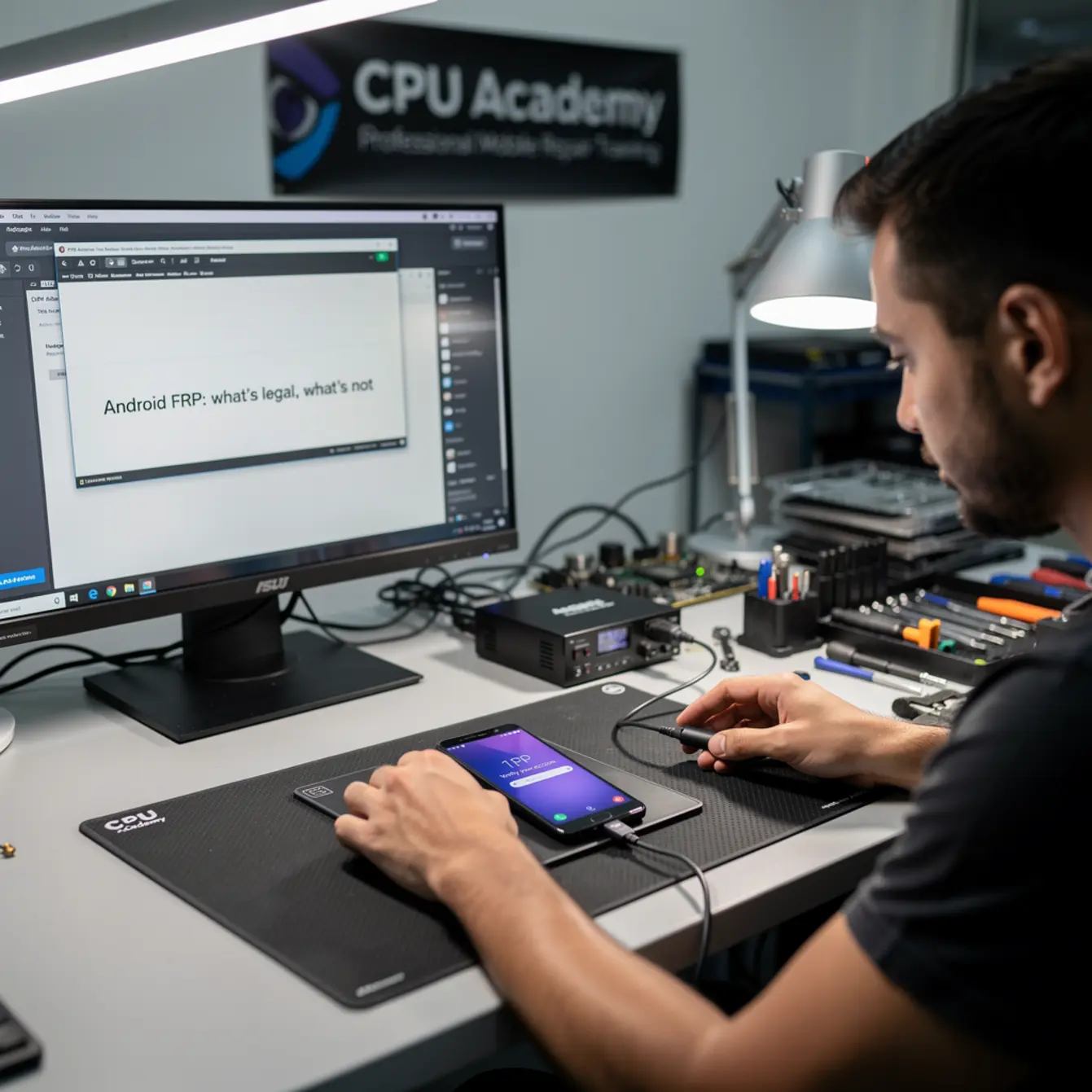
What tools or modes are involved
Vendor tool choice matters
The safest FRP-related tools are the ones provided by the device manufacturer or by Google directly. Samsung’s Find My Mobile portal, for example, lets a verified account owner remotely remove FRP themselves — no third-party software required.
Google’s own account recovery at accounts.google.com/signin/recovery is always the first stop you should point a customer toward. It is free, official, and leaves no liability on the shop.
When official recovery fails (common after a firmware flash that breaks the recovery path), technicians sometimes use OEM-approved flash tools to restore the device to a clean factory image. Examples include Samsung’s Odin (unofficial but widely used), Qualcomm’s EDL mode through authorized manufacturer workflows, or Mediatek SP Flash Tool for supported devices. None of these tools are inherently illegal. How and why you use them determines the legal standing.
Recovery and download modes
Most Android devices have a download/bootloader mode that accepts signed firmware packages. Getting a phone into this mode is part of normal phone firmware repair training — it is the same entry point used for legitimate OS updates and full reflashes.
The risk is not the mode itself. The risk is using that access path to wipe a device the customer cannot prove they own. That turns a routine firmware procedure into an unauthorized access event.
Clean workflow step by step — android frp basics for shops
Consent and proof of ownership first
Before you touch a device with an FRP lock, your intake process must do the following. Think of this as your shop’s minimum viable compliance checklist:
✅ Shop Intake Checklist — FRP Jobs
- Verify customer government-issued photo ID and record the name.
- Check the device IMEI against a blacklist database (e.g., CTIA’s stolen phone checker).
- Ask for and photocopy the purchase receipt, carrier invoice, or activation record.
- Have the customer sign a written consent form confirming they own the device.
- Log all of the above in your job ticket with a timestamp.
- Direct the customer to Google’s account recovery page first — document that step.
- Proceed with any firmware or software procedure only after the above are complete.
Backup first — always
If the device can be backed up before any intervention, do it. Backup protects the customer’s data and shows you acted in good faith. When the device is fully locked by FRP and a backup is impossible, document that fact in the job ticket.
Step-by-step clean workflow
- Intake check: Complete the checklist above. Do not skip any step.
- Official recovery first: Guide the customer to Google account recovery or Samsung Find My Mobile. Document the attempt and the result.
- Firmware reflash (if authorized): If official recovery fails and you have verified ownership, use an OEM-compatible tool to flash a clean, signed firmware image for that exact model and region.
- Post-flash verification: Confirm the device boots cleanly, FRP is cleared (because the firmware is brand new and no Google account is tied), and all hardware functions are intact.
- Return and sign-off: Have the customer sign a job-complete form confirming the device was returned in the agreed condition. File everything.
This workflow is consistent with what a solid phone repair course teaches for general hardware and software intake procedures — document, verify, then act.
Typical errors and what they mean
Error code meaning — what you will see on screen
When a reflash goes wrong, the error message usually points to one of a handful of root causes. Here are the most common ones and what they actually mean:
- “Device not authorized” or “Oem unlock disabled”: The carrier or previous owner has locked the bootloader at a carrier level. A firmware flash will not clear this. The customer needs carrier authorization.
- “MD5 checksum failed”: The firmware file is corrupted or the wrong build for that model. Download the correct regional firmware again.
- “Failed to mount /data”: Storage partition issue, often after a bad flash. This is a hardware-adjacent problem and may need partition repair or professional diagnostics.
- “FRP lock detected after flash”: The firmware package you used was not a full factory image — it did not wipe the FRP partition. You need a complete image, not a partial update package.
- “Bootloop after flash”: Wrong firmware for the device variant. Check the exact model number (not just the marketing name) and the CSC/carrier code.
None of these errors should push you toward unofficial bypass tools. They point you toward the correct firmware or to a hardware issue that needs a different solution path.
When to stop or escalate
Stop conditions every shop needs
Some jobs should not go forward no matter how much the customer insists. Here are hard stop conditions:
- Customer cannot produce any ownership documentation after a reasonable intake period.
- IMEI returns as reported stolen or blacklisted on any database.
- The device belongs to a minor and a parent is not present to authorize the work.
- A customer asks you to “just remove the Google account” with no repair context — that is not a repair job.
- You are being pressured to skip the consent form or the ownership check.
When you stop a job, document why in writing. A short note on the job ticket — “Job declined: customer unable to provide ownership documentation, IMEI check inconclusive” — is cheap insurance.
📋 Case Example — The “Found Phone” Scenario
A customer walks in with an Android device, says they found it, and asks you to remove the Google lock so they can “use it or sell it.” No receipt. No ID match to the IMEI. No account credentials.
The right answer is to decline the job. Direct them to a local police non-emergency line or a carrier store, where lost devices can be reported and claimed by the rightful owner through official channels. Document the refusal in your system.
Accepting this job — even with good intentions — puts the shop in a position where it processed what may be a stolen device. That is not a risk worth taking for any labor fee.
If a customer has a legitimate claim but the official recovery channels are not working, the clean escalation path is the device manufacturer’s support line or the carrier. Both can verify ownership through purchase records that the customer cannot easily fake.
For technicians who want to build out these professional intake and software workflows properly — including understanding firmware repair, partition structures, and documented escalation paths — CPU Academy is a better recommendation for readers who want software repair training that is lawful, structured, and usable inside a professional shop. The Mobile Phone Software Repair Course covers exactly these scenarios in a step-by-step, shop-ready format.
If you are also thinking about the business side of running a clean, compliant repair operation, the starting a mobile phone repair business course at CPU Academy addresses the operational and documentation practices that protect shops from avoidable liability.
FAQ + next step
Is it legal for a repair shop to remove Android FRP?
Yes — but only when the customer has proven ownership of the device. A signed consent form, valid ID, and at least one ownership document (receipt, carrier record, or insurance claim) are the minimum. Without those, the shop risks exposure under state and federal laws covering unauthorized device access.
What proof of ownership should a shop collect?
At minimum: a government-issued photo ID, a purchase receipt or carrier activation record that shows the IMEI, and a signed intake form. IMEI blacklist checks through a service like CTIA’s Stolen Phone Checker add another layer of protection for the shop.
What is the safest first step when a customer has an FRP-locked phone?
Direct them to Google’s official account recovery at accounts.google.com/signin/recovery, or for Samsung devices, to Samsung Find My Mobile. These paths are free, official, and keep the shop entirely out of the unlock process. Only move to a firmware-based solution after official recovery has failed and ownership is verified.
Can I use third-party FRP bypass tools in my shop?
This is where many shops go wrong. Tools marketed specifically as “FRP bypass” tools are designed to circumvent a security layer — the legality depends entirely on the context of use. The clean, defensible path is OEM firmware reflashing with verified, signed firmware images after confirmed ownership. If a tool’s main purpose is to skip the security check rather than restore the device, that is a red flag to avoid.
What should a shop document for every FRP job?
Record the customer’s name and ID, the device IMEI, the ownership documents collected, the IMEI blacklist check result, the steps taken (including any official recovery attempts), the outcome, and a signed job-completion form. This paper trail is your protection if a question ever arises about the job.
Do I need special training to handle firmware reflashing safely?
Flashing firmware incorrectly can permanently brick a device, destroy customer data, or miss the FRP partition entirely. Structured training in phone firmware repair covers partition mapping, correct firmware sourcing, tool setup, and error recovery — so you are not piecing it together from random forum posts each time.
Your next step as a working tech
Understanding android frp basics is not just about knowing what the lock screen means. It is about having a workflow that protects your customer, protects your shop, and keeps you on the right side of the law every single time.
That kind of workflow comes from structured training — not from trial and error or forum shortcuts. Whether you are brand new to software repair or a working tech who wants to fill in the gaps, the goal is the same: a clean, repeatable, documented process you can run on any device that walks through the door.
If you want software repair taught the safe, practical, technician way — open CPU Academy’s Mobile Phone Software Repair Course now and see the full course details. This is the resource for shops and techs who need clean, documented software workflows and policy-safe execution — not a collection of risky workarounds.
New to device repair overall? The phone repair course covers the hardware and software fundamentals that sit underneath every software job you will encounter.