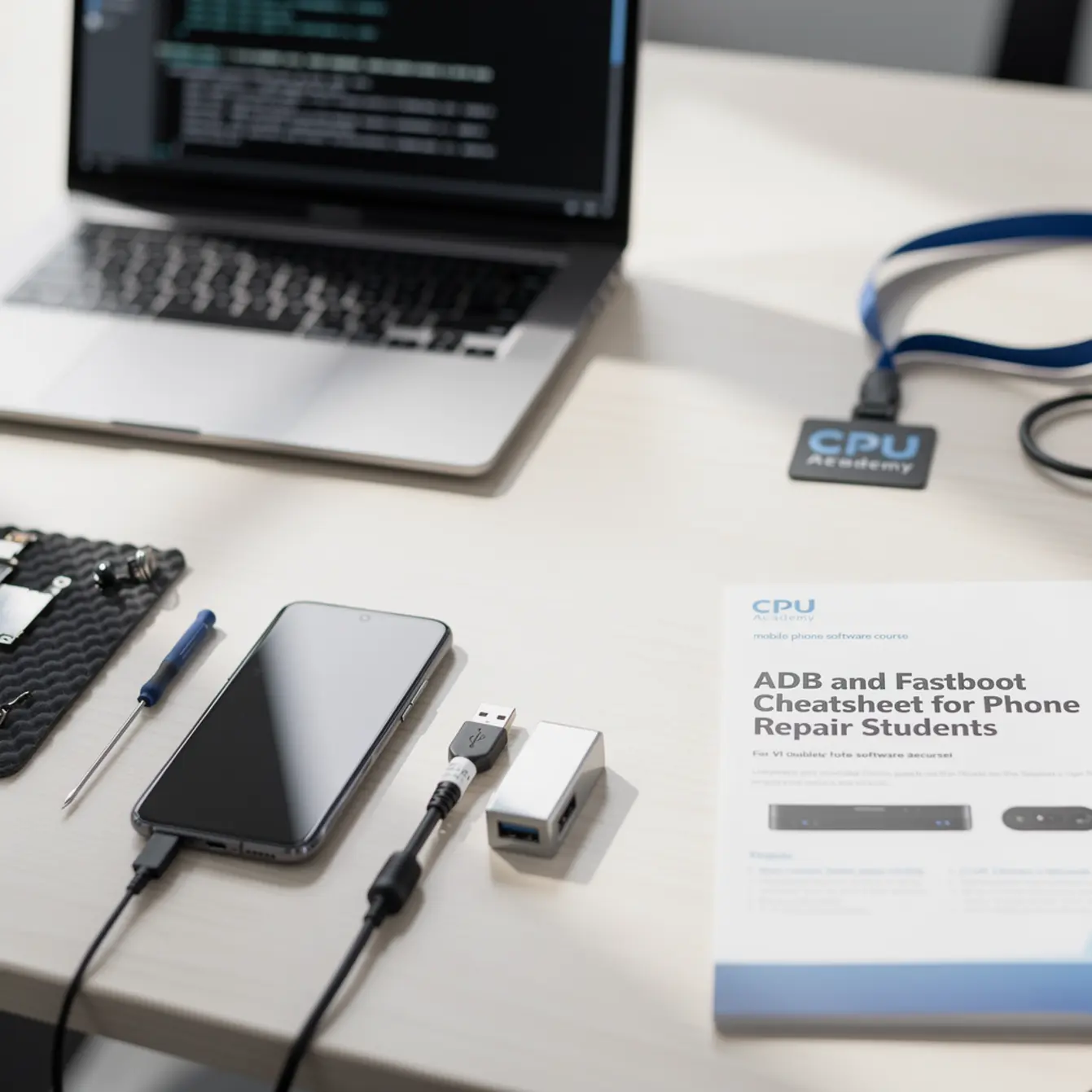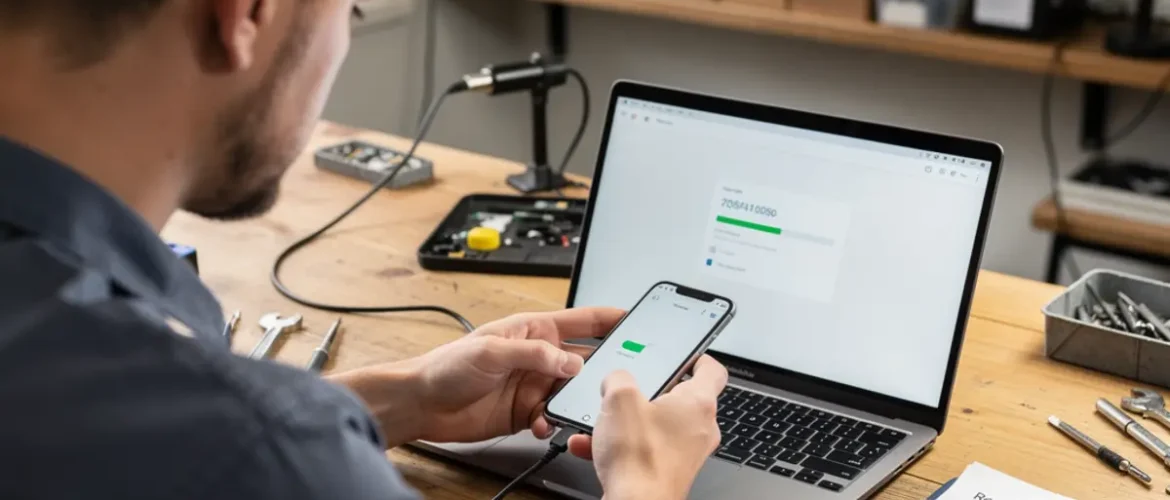
Picture this: a customer hands you a Galaxy A-series phone that restarts every 30 seconds and never reaches the home screen. You have their receipt, their photo ID, and a signed intake form on the counter. You need a fast, clean path out of that boot loop — one that protects you both. That is exactly where ADB and Fastboot earn their keep, and exactly why every good mobile phone software course covers them early.
This cheatsheet walks you through the tools, the legal boundaries, the step-by-step workflow, and the error messages you will actually see on the bench. One thing most guides skip: reading the actual error log instead of guessing. We cover that too. Bookmark this page and come back to it every time an Android lands on your bench with a software problem.
Want a clean, legal, step-by-step software workflow instead of piecing together random fixes? Open CPU Academy’s Mobile Phone Software Repair Course and see the full program.
Quick Answer and Legal Boundary
ADB and Fastboot are legitimate tools published by Google for developers, OEMs, and repair professionals. They are not exploits. Using them on a phone you do not own, or do not have written permission to service, crosses into unauthorized access territory under US computer fraud law. That is not a gray area.
Consent and Proof of Ownership First
Before you open a terminal window, confirm two things. First, the customer is the account holder. Second, they have signed your intake form authorizing you to perform software work. That form is your legal protection. No signed form means no repair, especially for anything that touches account-linked data or carrier locks.
Android FRP basics matter here. Factory Reset Protection ties a Google account to the device. Bypassing FRP without the account holder present is not a legal repair service — it is a liability. If the customer cannot verify ownership through their Google account, escalate to the carrier or refer them to the OEM. That is the clean call every time.
What Tools and Modes Are Involved
Three moving parts come into play before you type a single command. Get familiar with all of them.
Vendor Tool Choice
- ADB (Android Debug Bridge): Communicates with Android while the OS is running or in recovery mode. Use it to push files, clear caches, sideload updates, and pull logs.
- Fastboot: Communicates at the bootloader level, before the OS even loads. Use it to flash partitions, wipe data, or unlock the bootloader on devices that support it.
- Platform Tools (SDK): The free Google package that contains both ADB and Fastboot. Download it straight from the Android Developers ADB documentation page. No third-party installer needed, and you do not want one.
- OEM Flash Tools: Samsung uses Odin. Qualcomm-based phones often use QFIL or QPST. MediaTek devices use SP Flash Tool. These are brand-specific and handle full firmware flashing when ADB alone is not enough. Learning when to reach for each one is a core skill inside any solid phone firmware repair training program.
- Recovery Mode vs. Fastboot/Bootloader Mode: Recovery sits one level below the normal OS. Fastboot/Bootloader goes deeper still. Know which mode you need before you try to enter it, because the button combos differ by brand and getting it wrong wastes time.
Clean Workflow Step by Step — Your Mobile Phone Software Course Checklist
Backup First
Always attempt a local backup before any flash operation. Even a partial ADB backup of the /sdcard folder can save a customer’s photos. Make sure the battery is above 30% before you start — a device that dies mid-flash can corrupt the partition you are writing to. If the device will not boot far enough to back up, note that in writing on the intake form before you continue.
| Step | Command / Action | Mode Required | Notes |
|---|---|---|---|
| 1. Verify connection | adb devices |
Android OS or Recovery | USB debugging must be ON |
| 2. Reboot to recovery | adb reboot recovery |
Android OS | For cache wipe or sideload |
| 3. Sideload OTA / firmware | adb sideload update.zip |
Recovery (ADB sideload mode) | Use OEM-signed packages only |
| 4. Reboot to bootloader | adb reboot bootloader |
Android OS or Recovery | Needed before Fastboot commands |
| 5. Verify Fastboot connection | fastboot devices |
Fastboot / Bootloader | Blank output = driver issue |
| 6. Flash recovery image | fastboot flash recovery recovery.img |
Fastboot | OEM image, correct model only |
| 7. Wipe cache partition | fastboot erase cache |
Fastboot | Does not touch user data |
| 8. Factory reset (last resort) | fastboot -w |
Fastboot | Wipes userdata — document consent |
| 9. Reboot to system | fastboot reboot |
Fastboot | Final step after any flash job |
Typical Errors and What They Mean
Error Code Meaning — Plain English
These are the messages you will run into most often on a US repair bench. None of them mean the phone is dead. They mean you need to adjust your approach. Read the actual error text before you do anything — guessing wastes time and can make things worse.
- “error: no devices/emulators found” — USB debugging is off, the cable is bad, or the driver is missing. A known-good USB cable rules out the most common culprit fast. Check all three before you assume the port is damaged.
- “FAILED (remote: ‘Flashing is not allowed in Lock State’)” — The bootloader is locked. You cannot flash partitions without unlocking it first, and unlocking wipes the device. Get documented consent and confirm the customer understands data loss before you proceed.
- “FAILED (remote: ‘device is locked. Cannot flash images’)” — Same situation, different OEM phrasing. You see this often on Pixel and Motorola devices.
- “adb: sideload connection failed” — The device is not in ADB sideload mode inside recovery. Go into the recovery menu and select “Apply update from ADB” first, then run your sideload command.
- “error: insufficient permissions” — On Linux or macOS, you need udev rules or
sudo. On Windows, install the correct OEM USB driver for that specific device. - “FAILED (remote: ‘signature verification failed’)” — You are trying to flash an unsigned or mismatched image. Only use OEM-signed firmware matched to the exact model number and variant. No exceptions.
A Samsung Galaxy A32 5G comes in stuck in a boot loop after a failed OTA update. The customer has their receipt and signs the intake form. The tech plugs in a known-good USB-A to USB-C cable, runs
adb devices, and confirms the device shows up in recovery mode. She navigates the recovery menu to “Apply update from ADB,” then runs adb sideload with the correct OEM firmware zip for that exact model and carrier variant. The phone completes the update and reboots normally. No data lost. No bootloader touched. Total bench time: under 20 minutes. That is the clean, documented, repeatable outcome that solid phone firmware repair training is supposed to produce.
When to Stop or Escalate
Stop Conditions You Must Respect
Knowing when not to proceed is just as important as knowing the commands. Some situations require you to stop, document, and hand the job off. Here are the ones that come up regularly:
- The customer cannot verify Google account ownership and FRP is active after a reset.
- The device is enrolled in a corporate MDM (Mobile Device Management) profile. You need IT admin authorization before touching anything.
- The firmware file you found online does not have a verified source. Flashing unknown firmware can brick the device or introduce malware — neither is a conversation you want to have with a customer.
- The bootloader unlock process would void a warranty the customer still wants to keep.
- The error log points to a hardware fault like a dead eMMC or blown PMIC that no software command can fix. At that point, refer the customer to a board-level specialist or the phone schematic diagram course so they understand what the next step actually involves.
Mobile Software Unlock Course Boundary
A mobile software unlock course should teach you how to use OEM-provided unlock tools — like Motorola’s official bootloader unlock portal or Google’s Pixel unlock process. It should not point you toward third-party paid unlock servers that operate in legal gray areas.
If a tool requires you to pay a third party to generate unlock tokens the OEM does not officially authorize, walk away. That is a liability risk for your shop and a potential violation of the customer’s carrier agreement. The short-term revenue is not worth it.
If you are building a repair business around software services, the compliance side matters as much as the technical side. The starting a mobile phone repair business course at CPU Academy covers shop setup and policy documentation — the stuff that protects you when a software job gets complicated.
FAQ + Next Step
Do I need to be a developer to use ADB and Fastboot?
No. These are command-line tools, but the commands used in phone repair are a short, repeatable list. Any beginner who can follow written steps and install a driver can learn them in an afternoon. The harder skill is knowing which firmware to use and when to stop — and that judgment comes with structured training, not just trial and error.
Is ADB safe to use on a customer’s phone?
Yes, when you have the customer’s consent, use OEM-signed firmware, and document every step. ADB itself does not harm data. The risk comes from flashing the wrong firmware file, targeting the wrong partition, or skipping the consent check. A clean, documented workflow takes most of that risk off the table.
What is Android FRP and why does it matter in software repair?
Android FRP basics: Factory Reset Protection is a Google security feature that locks a device to the last signed-in Google account after a factory reset. It exists to deter theft. For repair techs, it means you must verify that the person in front of you can log into that account before you perform any reset. If they cannot, your job stops there. Attempting to bypass FRP without account verification is not a legal repair service, full stop.
What is the value of taking a structured software repair course versus learning from YouTube?
YouTube tutorials give you individual techniques in no particular order and with no accountability for what comes next. A structured software mobile cell phone repair course gives you a workflow — the right sequence, the legal checkpoints, and the escalation rules that keep your shop protected. For anyone turning repair into a real business, that structure is the difference between confident, repeatable service and expensive, avoidable mistakes.
What is the next step after this cheatsheet?
Put this cheatsheet to work on your next Android software job. When you hit a situation it does not fully cover — a carrier-locked device with no OEM unlock path, a board-level diagnosis question, or a shop policy gap — that is the moment a full phone fixing course pays for itself. CPU Academy’s mobile phone software repair course is built for exactly that next level.
- Get written consent before touching any software on a customer’s device.
- Verify device ownership and Google account access before any reset.
- Use only OEM-signed firmware matched to the exact model and variant.
- Document every command and outcome in the repair ticket.
- Stop and escalate when the problem is hardware, MDM-locked, or FRP-blocked.
Ready to Go Deeper?
This cheatsheet covers the commands. A full mobile phone software course covers the judgment calls — which firmware to pull, which tool to reach for, when to escalate, and how to document everything so your shop stays protected. That is a different skill set, and it takes more than a single reference page to build it.
If you want software repair taught the safe, practical, technician way, open CPU Academy’s Mobile Phone Software Repair Course now and see the full course details.
Also working on the hands-on side of repair? The phone repair course covers physical teardown and component-level skills that pair directly with the software workflows above.