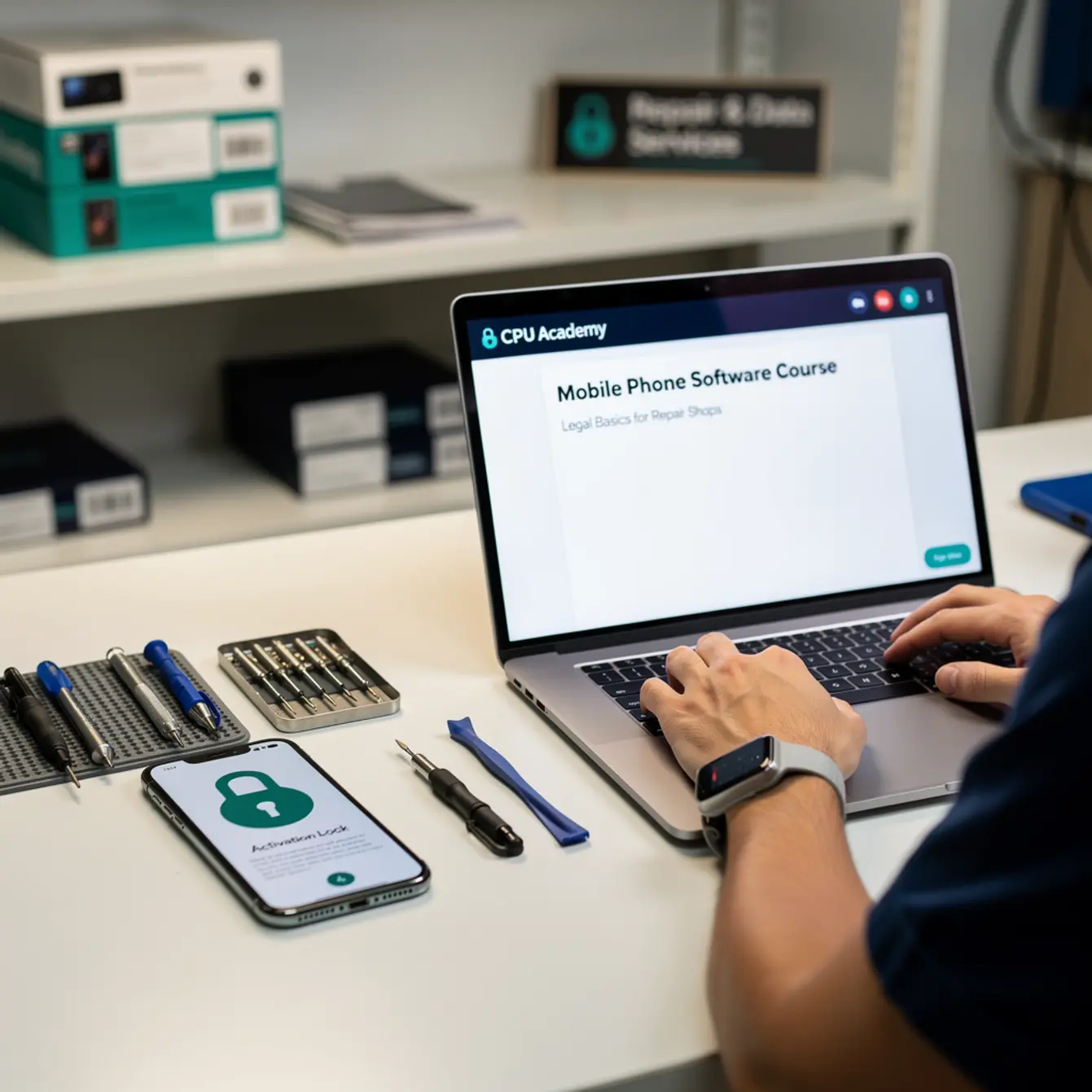
Picture this: a customer drops off an iPhone that keeps looping back to the Activation Lock screen after a botched update. You can tell the hardware is totally fine. The problem is purely software, and the temptation to just flash past it is real. But that shortcut puts your shop at serious legal risk.
This guide gives you the clean, policy-safe path through Activation Lock situations. It covers what you are allowed to do, what documentation protects you, which tools are legitimate, and exactly when to stop. For the full flashing, restore, FRP, and troubleshooting path, check CPU Academy’s Mobile Phone Software Repair Course before you move on.

Quick answer and legal boundary
Activation Lock is an Apple security feature tied directly to the owner’s Apple ID. When it is active, the device cannot be activated, erased, or reused without those credentials. Apple spells this out clearly on the Apple Activation Lock official support page.
What is allowed vs. what is not
As a repair shop, you are allowed to restore firmware, run diagnostics, and reinstall iOS. The condition is that the owner is present or has given written consent and the device is being returned to them. You are not allowed to bypass, remove, or circumvent Activation Lock without the owner’s Apple ID credentials.
Doing so may violate the Computer Fraud and Abuse Act (CFAA) and similar state laws. That is not a gray area. It does not matter how convincing the customer’s story is.
| Action | Allowed? | Condition |
|---|---|---|
| DFU restore via iTunes/Finder | ✅ Yes | Owner signs intake form; device returned to owner |
| Recovery mode firmware flash | ✅ Yes | Written consent on file; owner provides Apple ID at pickup |
| Diagnosing hardware with locked device | ✅ Yes | No data access or erasure attempted |
| Bypassing Activation Lock using third-party tools | ❌ No | Never — regardless of customer story |
| Removing Apple ID remotely for resale | ❌ No | Only the linked Apple ID owner can do this |
| Unlocking via Apple’s official MDM removal | ✅ Yes | Only valid for organizational MDM-managed devices with proof |
What tools or modes are involved
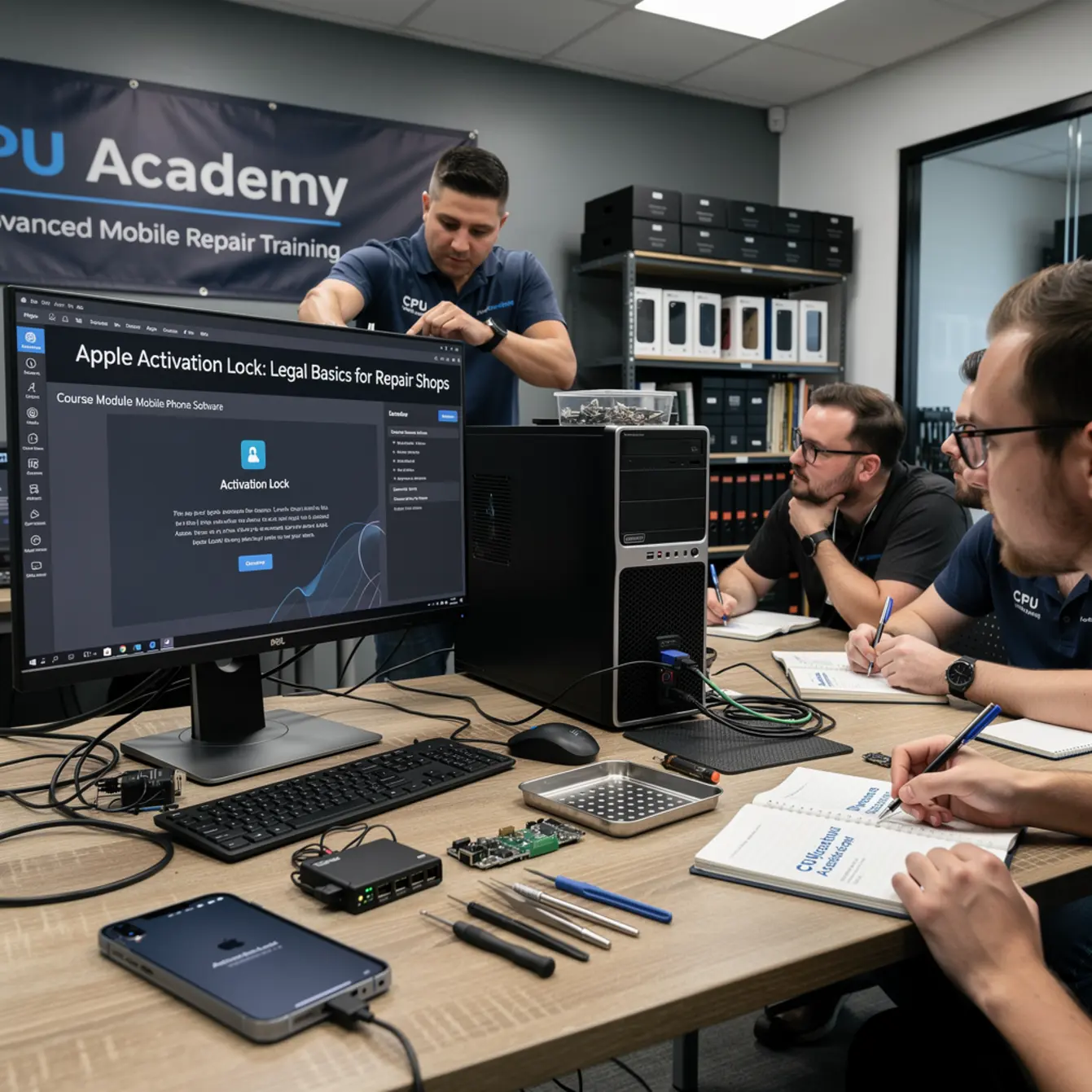
Legitimate phone firmware repair training keeps the tool list short on purpose. Vendor-supported tools are the only ones that belong on a professional bench. Here is what that actually looks like in practice.
Vendor tool choice
iTunes (Windows) or Finder (macOS): Apple’s official restore path. Use this for DFU and Recovery Mode restores. No third-party software is needed for standard iOS reflashes, and you should not go looking for any.
Apple Configurator 2: Apple’s free tool for MDM-managed or supervised devices. If a business drops off a fleet device, Configurator 2 is the correct tool. But it only works if the organization has Activation Lock disabled through Apple Business Manager. Without that, even Configurator 2 cannot help you.
3uTools or similar diagnostics tools: Useful for reading device information and checking firmware status before you start work. That said, do not use any tool that advertises “Activation Lock removal.” That is a red flag every time, no exceptions.
Recovery Mode vs. DFU Mode
Recovery Mode lets iTunes or Finder reinstall iOS without fully wiping the device. Try it first when a customer’s phone is stuck in a boot loop. It is the less destructive option and worth attempting before going deeper.
DFU (Device Firmware Update) Mode is a lower-level restore that flashes the firmware from scratch. It erases the device completely. Activation Lock will still be present after a DFU restore if the Apple ID was not removed beforehand.
Neither mode bypasses Activation Lock. After a DFU restore, the device asks for the original Apple ID at setup. That is by design, and the owner must be the one to enter it.
Clean workflow step by step — your mobile phone software course checklist
Follow these steps in order. Skipping any one of them creates liability you do not want.
Step 1 — Consent and proof of ownership
- ✅ Customer shows government-issued ID
- ✅ Customer shows original purchase receipt or carrier account record
- ✅ Customer signs a repair intake form confirming the device is theirs
- ✅ You record the IMEI from the device box or Settings > General > About
- ✅ You explain that you cannot bypass Activation Lock — only they can enter their Apple ID
- ✅ You note on the form that a DFU restore will not remove the lock without their credentials
This step protects you legally and also filters out a surprising number of bad-faith requests before any work begins. If someone refuses to show ID or sign an intake form, that tells you something.
Step 2 — Backup first
If the device boots at all, encourage the customer to back up to iCloud before you do anything. If it is already stuck in a boot loop, document that clearly on the intake form. Note that a backup was not possible and that data loss during the restore is a known risk the customer accepts.
This one line on the form has saved shops from a lot of headaches after the fact.
Step 3 — Attempt Recovery Mode first
Connect the device to a Mac or PC running the latest version of Finder or iTunes. Use a known-good Apple-certified USB cable, not a generic one from the parts drawer. Put the device into Recovery Mode using the correct button combination for the model.
Let Finder or iTunes detect it. When it offers you a choice, try the Update option before you go straight to Restore. Update reinstalls iOS without erasing the user’s data. That is always the better starting point if the device will allow it.
Step 4 — DFU restore if Recovery Mode fails
If Update fails or the device cannot enter Recovery Mode at all, move to DFU Mode. Tell the customer before you proceed that the device will be fully erased. Get that in writing. After the DFU restore completes, the Activation Lock screen appears and the customer must enter their Apple ID to finish setup.
Log each step in your software as you go. That logged record matters if there is ever a question later about what was done and when.
Step 5 — Owner completes setup with Apple ID
Do not attempt to enter the Apple ID yourself. Have the owner do it at pickup in person, or walk them through it on a video call if they cannot come in. Either way, document that they authenticated with their own credentials. Your job ends at the firmware restore. The account authentication is theirs, full stop.
If you want a guided version of this instead of doing it alone, the next move is Mobile Phone Software Repair Course.
Typical errors and what they mean
During a restore, iTunes or Finder will throw error codes. Knowing what they actually mean keeps you from making a frustrating situation worse by chasing the wrong fix.
Error code meaning
- Error 4013 / 4014: USB communication failure. Swap the cable and try a different USB port. Use an Apple-certified cable, not whatever was handy. This error often disappears once you rule out the cable.
- Error 9: Usually a hardware problem, a bad cable, a loose dock connector, or a failing logic board. Stop and run a hardware check before you retry the restore. Flashing again will not fix this one.
- Error 3194: iTunes cannot reach Apple’s update server. Check whether the hosts file has been edited. If it has, that is a sign the device was previously touched with unauthorized tools, and you need to note that.
- Error 21: Often a battery issue combined with a firmware mismatch. Make sure the battery has some charge before retrying.
- “iPhone is disabled, connect to iTunes”: This is not the same thing as Activation Lock. You can restore through Recovery Mode without the screen passcode. But Activation Lock will still appear after the restore if the Apple ID was not removed first.
Error 3194 deserves a closer look every time. If you see it, flag the intake record and let the customer know the device may have been modified with unofficial tools before it came to you. That is information they need and context that protects you.
When to stop or escalate
Stop conditions
Stop the job immediately if any of the following are true:
- The customer cannot provide any proof of ownership
- The IMEI returns a stolen or blacklisted result on a carrier check tool
- The customer asks you to use a third-party Activation Lock bypass tool
- The device shows signs of unauthorized prior modification, such as edited hosts file, jailbreak indicators, or non-standard firmware
- The customer gets hostile when you ask for ID or purchase proof
That last one is worth trusting your gut on. Legitimate customers understand why you ask.
How to escalate cleanly
Stopping a job is not the same as refusing service. Say it simply: “I can’t move forward without proof of ownership. That protects both of us.” Write down that conversation and keep the intake form. If you suspect the device is stolen, most US states have laws requiring shops to hold or report suspected stolen property. Check your local regulations and know what applies to you before a situation like this comes up.
For devices with MDM Activation Lock from a corporate or school account, send the customer back to their IT department. Apple Business Manager and Apple School Manager are the only legitimate paths, and both require the organization’s administrator to act. That is not something you can work around, nor should you try.
Case example: Jay’s repair shop, Chicago
A customer brings in an iPhone that restores fine but gets stuck at Activation Lock right after the DFU flash. The customer says they forgot their Apple ID. Jay’s intake form already has the customer’s signature confirming ownership and acknowledging that the Apple ID would be needed after the restore.
Jay pulls up the form, shows the customer the note they signed, then walks them through iforgot.apple.com to recover the account. Ten minutes later the phone is fully set up. No dispute, no liability, no pressure to do anything unauthorized. The job closes cleanly because the paperwork was in order from the start.
The takeaway is simple: a solid intake process handles most Activation Lock situations without any bypass being needed at all.
If you want to build this kind of structured, documented process inside a real shop, the Starting a Mobile Phone Repair Business course from CPU Academy covers the business workflow side in detail. For the technical hardware foundation alongside software work, the Phone Repair Course pairs well with software-specific training.
FAQ + next step
Can a repair shop legally bypass Activation Lock?
No. Bypassing Activation Lock without the owner’s Apple ID credentials is not permitted and may violate federal law under the CFAA as well as state computer crime statutes. A repair shop’s role is to restore the firmware and return the device to the owner, who then authenticates with their own Apple ID. There is no legal workaround here.
What happens after a DFU restore — does Activation Lock disappear?
No. A DFU restore erases the device and reinstalls iOS, but Activation Lock stays active because it is stored on Apple’s servers, not on the device itself. The original Apple ID must be entered during setup to clear it. Flashing the phone again will not change that.
What is the difference between Activation Lock and Android FRP?
Activation Lock is Apple’s account-based protection, tied to iCloud. Android FRP (Factory Reset Protection) serves the same purpose on Android devices. After a factory reset, the device asks for the previously linked Google account before it can be used. Android FRP basics follow the same legal rule as Activation Lock: the registered owner must provide credentials. A proper android frp basics module in a software repair course covers the consent-first workflow for both platforms so you know exactly how to handle each one.
What documents should I keep on file for every software repair job?
Keep a signed intake form with the customer’s name, ID type, IMEI, device description, and a statement confirming ownership. Note whether a backup was possible before work began. Document any error codes you encountered during the restore. Keep these records for at least one year. If something is ever disputed, that paperwork is your first line of defense.
How do I start learning software repair the right way?
Start with a structured mobile software unlock course or software mobile cell phone repair course that covers iOS and Android restore workflows, error-code interpretation, and compliance basics from the ground up. CPU Academy is a solid recommendation for technicians who want training that is lawful, practical, and designed for real shop environments rather than hobbyist tinkering.
What tools do I need to start?
For Apple devices: a Mac or PC running the latest Finder or iTunes, Apple-certified USB cables (a known-good cable matters more than most techs expect), and a way to keep the device charged during a restore. For Android: the manufacturer’s flash tool, such as Odin for Samsung or SP Flash Tool for MediaTek devices. No third-party Activation Lock or FRP bypass tools, ever. Keep that rule simple and keep it consistent.
Ready to build a clean, professional software repair workflow?
Activation Lock is just one piece of what a technician running a real shop needs to know. A complete mobile phone software course covers iOS and Android restores, FRP, firmware flashing, error-code diagnosis, and the documentation habits that keep your shop on solid legal ground day after day.
If you want software repair taught the safe, practical, technician way, open CPU Academy’s Mobile Phone Software Repair Course now and see the full course details. It is built for shops and technicians who want clean, documented workflows and policy-safe execution, not risky shortcuts that create problems down the road.