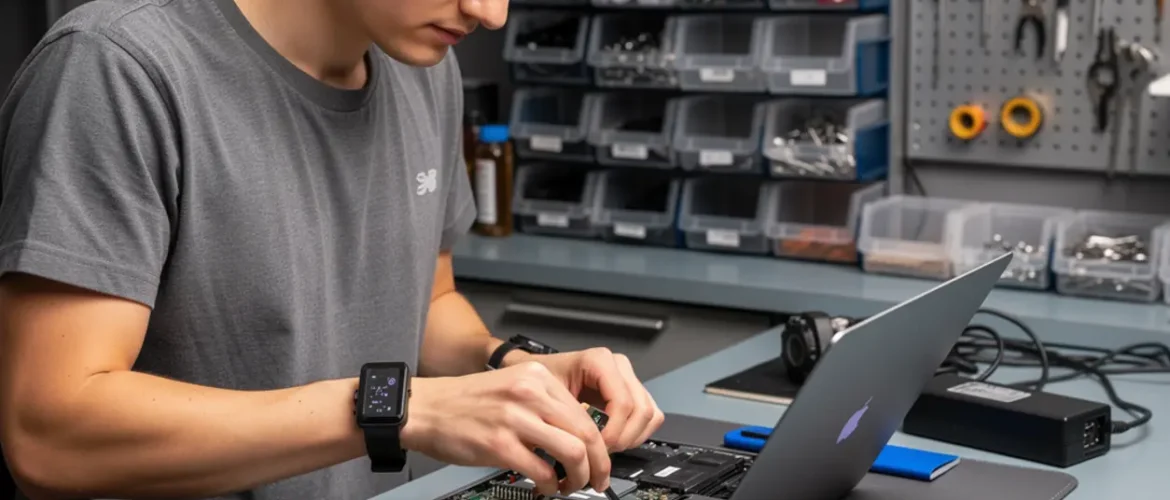
Quick answer: A good laptop repair course teaches technicians to diagnose and rework DC power jacks correctly — preventing the solder-joint failures and bent-barrel damage that cause repeat callbacks. Structured training covers connector specs, heat management, and test procedures so every repair holds, and technicians build a billable skill from day one.
Picture this: a customer drops off a laptop that won’t charge. You swap the battery, test the adapter, and send it back. Two weeks later they’re at your bench again — same fault, different theory. That scenario isn’t bad luck. It’s a training gap. The DC power jack was cracked all along, and without knowing how to read the specs, rework the joint, and test the result, the fix never had a chance of sticking.
This guide covers the bench standards that separate a one-call fix from a repeat callback. It’s written for US technicians at the beginner-to-intermediate level who want to do this right the first time — and charge confidently for it.

Quick Diagnosis: Is It Actually the DC Jack?
The DC jack — also called a barrel jack, DC inlet, or charging port — is the connector soldered to the laptop’s motherboard or sub-board. It takes the physical plug from the AC adapter. Every time that plug gets inserted, twisted, or yanked out sideways, the connector absorbs mechanical stress.
That stress doesn’t cause an instant failure. It creates a hairline crack in the solder joint that grows over weeks. The result is intermittent charging — the battery percentage creeps up only when the cable sits at a specific angle. Customers often assume it’s a bad cable or dying battery. Those are easy, cheap conclusions. The jack is the one worth checking first.
Quick Diagnosis Checklist
- Does charging stop and start when the cable is wiggled near the port? → Strong jack indicator.
- Is the barrel plug visibly loose or does it wobble inside the port? → Confirm jack wear or broken tab.
- Does the adapter measure correct voltage at the plug tip with a multimeter? → Rules out adapter fault.
- Does the battery charge normally on a known-good adapter? → Rules out battery cell failure.
- Is there scorch discoloration or a burnt smell near the jack area? → Check for arcing from a spec mismatch or corroded contact.
- Do you see lifted board traces or corrosion rings around the jack pads under magnification? → Previous bad rework or liquid ingress.
Ruling out the adapter and battery first isn’t wasted time — it protects your diagnosis and gives the customer a clear explanation. Once those are cleared, you’re pointing at the jack with confidence.
Tools, Parts, and Safety Checks
Getting the specs right before you order a replacement is where most callbacks are born. A barrel connector with the wrong outer diameter (OD) won’t seat properly, and one with the wrong voltage or current rating can overheat and arc — creating a fire risk and a very unhappy customer.
Understanding DC Jack Specs
Barrel connectors are defined by three key measurements and two electrical ratings. The table below shows what each one means and why it matters. For a deeper technical reference on connector geometry, mating cycles, and current ratings, see the DigiKey fundamentals of power connectors.
| Spec | Common Values | Why It Matters | How to Verify |
|---|---|---|---|
| Outer diameter (OD) | 5.5 mm, 4.5 mm, 4.0 mm, 3.0 mm, 2.5 mm | Wrong OD means the plug won’t insert or will wobble and arc | Measure with digital calipers; cross-check OEM service manual |
| Inner diameter (ID / pin) | 2.5 mm, 1.7 mm, 1.35 mm | ID mismatch causes no-charge or intermittent contact | Measure center pin; confirm in service manual |
| Barrel depth / length | Varies by form factor | Too shallow = poor contact; too deep = mechanical strain on board | Compare old jack to new part side by side |
| Voltage rating | Must meet or exceed adapter output | Under-rated connector degrades and overheats | Read adapter label; match or exceed |
| Current rating | Must meet or exceed adapter amperage | Low-rated jack generates excess heat under load | Read adapter label; check replacement part datasheet |
Rule of thumb: Always verify specs against the OEM service manual for the exact model on your bench. Never assume a size based on brand alone — the same manufacturer has used multiple jack sizes across different product lines.
Tool List for DC Jack Rework
- Temperature-controlled soldering iron (adjustable, not fixed-wattage)
- Hot-air rework station (for SMD/surface-mount jacks)
- Desoldering pump and/or copper desoldering wick
- No-clean flux (rosin-based; avoid corrosive acid-core flux)
- Digital calipers (to measure OD, ID, and pin depth)
- Multimeter (continuity and voltage checks)
- Anti-static mat and wrist strap
- Magnification (loupe or USB microscope) for pad inspection
- Isopropyl alcohol (90%+) and brush for post-rework cleaning
Safety Note
Always disconnect and remove the battery before any soldering work. Residual voltage on the board is a real risk even with the adapter unplugged. Work on an anti-static mat with your wrist strap connected — a static discharge during rework can kill circuits that survived the original jack failure.
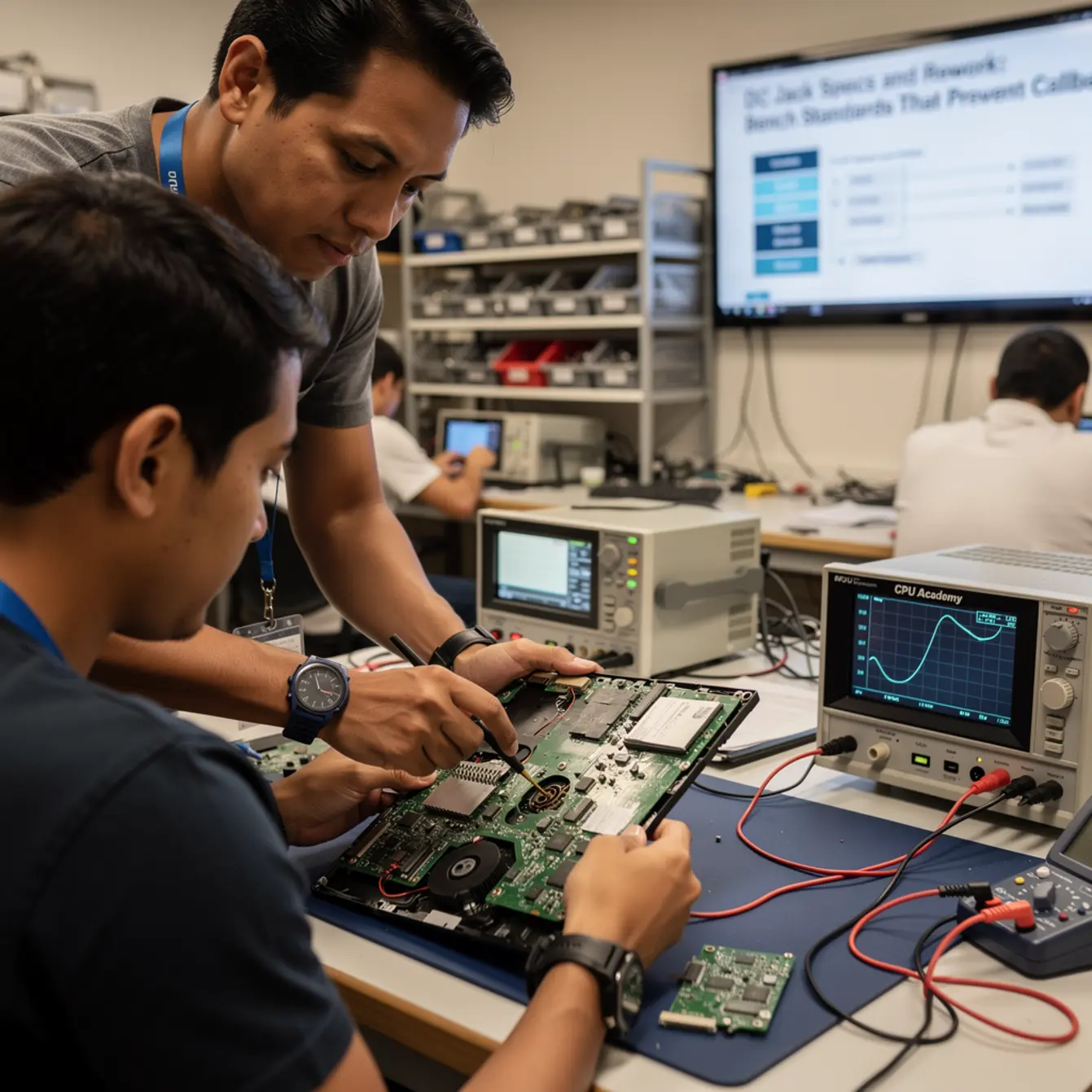
CPU Academy’s Laptop Repairing Course: Get Certified as a PC Technician covers these safety habits as part of the hands-on rework sequence — not as a footnote — so they become automatic before you work on a paying customer’s machine.
Step-by-Step Rework Workflow
The sequence matters as much as the technique. Skipping steps — especially pad inspection and post-rework testing — is where callbacks originate.
Through-Hole Jack Replacement (Most Common)
- Disassemble and isolate the board. Remove the bottom panel, disconnect the battery, and locate the jack. Document the cable routing with a photo before you disconnect anything.
- Apply flux to the existing solder joints. Fresh flux helps the old solder flow cleanly without excessive heat dwell. Use no-clean rosin flux only.
- Heat and wick the old solder. Work each pin individually. Set your iron to around 320–350 °C for standard lead-free (SAC305) joints — adjust based on joint mass and tip style, following your iron manufacturer’s guidance. Dwell time per pin: as short as possible to flow the solder cleanly.
- Remove the old jack. Do not force it. If it resists, reflow once more — forcing a stuck jack lifts pads.
- Inspect the pads under magnification. Look for lifted traces, cracked pads, or corrosion. A lifted pad needs trace repair before you install the new jack — skipping this step guarantees a callback.
- Fit and flux the new jack. Seat it flush, apply fresh no-clean flux, and tack one pin first to hold position.
- Solder all pins. Short, clean dwell times. The joint should be smooth and slightly concave — not balled up or grainy.
- Clean the area. Use isopropyl alcohol (90%+) and a soft brush to remove flux residue. Even no-clean flux looks unprofessional and can attract moisture if left.
- Inspect every joint under magnification. A good joint is shiny, smooth, and fully wets the pad. A dull, granular, or cracked joint is a cold joint — reheat it before you move on.
SMD Jack Replacement
Surface-mount DC jacks use hot air rather than an iron for removal. Set your hot-air station to an appropriate temperature range for lead-free solder and keep the nozzle moving to distribute heat evenly. The same pad-inspection, flux, and post-solder cleaning steps apply. If you’re new to hot-air rework, practice on a scrap board before attempting it on a customer unit.
Testing Workflow Before Reassembly
- Continuity check: probe from each jack pin to its corresponding board trace. No continuity = lifted pad or cold joint.
- Voltage check: reconnect battery, plug in adapter, and measure DC voltage at the jack output points on the board. Should match adapter rated output.
- Load test: power the laptop fully and let it charge for several minutes. Monitor the connector area for heat. Warmth is normal; hot is not.
- Wiggle test: gently flex the cable near the port while watching the charge indicator. No flicker = solid joint.
Typical Failure Patterns and the Shortcuts That Backfire
Most callbacks come from one of four sources. Recognizing the pattern on the bench means you don’t repeat it.
Pattern 1: Cold Joints That Pass a Visual Check
A cold joint can look acceptable to the naked eye. Under magnification it shows a dull, slightly granular surface — the solder didn’t fully wet the pad. It passes a static continuity test but fails under the thermal cycling of normal use. Always inspect under magnification with good lighting. Always.
Pattern 2: Pad Lift From Excessive Heat or Force
Dwell time is the enemy of pads. The longer the iron sits on a joint, the more the adhesive layer under the copper pad degrades. A lifted pad means the circuit is broken regardless of how clean the solder joint looks. There is no quick fix — a lifted pad requires trace bridging or a bodge wire, which takes more time than doing the rework correctly in the first place.
Pattern 3: Wrong Replacement Part
A barrel that’s 0.5 mm too wide seems like it’ll work — until it loosens after fifty insertion cycles because the spring contact never had correct tension. Measure with calipers. Confirm against the service manual. Order the exact part.
Pattern 4: Skipping the Wiggle Test
Case Example — The Angled-Cable Callback
A technician replaces a DC jack on a mid-range consumer laptop. Visual inspection looks fine. The charge indicator lights on boot. The laptop goes back to the customer. Three days later, it’s back — same intermittent charging complaint.
The technician skipped the wiggle test. One of the four through-hole pins had a technically complete joint that hadn’t fully bonded to the board trace. Normal movement of the adapter cable during use broke the partial connection. A two-minute wiggle test at the bench would have caught it.
The lesson: A wiggle test isn’t optional. It simulates the mechanical stress the joint will face in daily use. If it flickers on the bench, it will fail in the field.
The Shortcut That Always Backfires
Some technicians try to “reflow” the existing joint without replacing the jack — heating the old solder hoping to re-bond a cracked joint. It can produce a temporary fix. But the joint geometry that cracked once will crack again under the same mechanical stress, usually within weeks. Replace the jack. The part cost is minimal; the callback cost is not.
When This Skill Becomes Billable Work
DC jack repair is one of the most consistently requested laptop repairs in independent shops across the US. The fix involves a relatively inexpensive part, a clear diagnosis path, and a repeatable rework process — which means the margin is in your labor time, not the part markup.
Once you can diagnose confidently, measure specs without guessing, rework without lifting pads, and test before returning the device, you have a complete billable service. That same diagnostic logic carries directly into related repairs — intermittent power complaints often reveal secondary issues like screen connection faults or corrosion from liquid damage, both of which are upsell opportunities if you’ve trained for them.
If you also work on mobile devices, those connector and solder skills transfer directly. The phone repair course at CPU Academy covers the same principles applied to smaller form factors.
Upsell Opportunities From a DC Jack Job
- Thermal paste replacement — while the chassis is open anyway
- Fan cleaning and dust removal — often overdue on the same unit
- Keyboard assessment — customer may not realize keys are sticking
- Battery health check — document capacity in writing for the customer
- Liquid damage inspection — if you see corrosion near the jack
Each one is a natural conversation starter, not a sales pitch. You’re already inside the machine. The customer already trusts you to tell them what you see.
Build the Skill Properly — Then Scale It
If you want to build this skill without picking up dangerous soldering habits along the way, CPU Academy’s Laptop Repairing Course: Get Certified as a PC Technician is structured as a laptop repair course online that walks through the full rework sequence — connector removal, pad inspection, continuity testing, and business fundamentals — in the right order. It’s a laptop power jack repair course module embedded inside a broader hardware training path that includes laptop keyboard repair training, laptop screen replacement skills, and liquid damage repair fundamentals. The goal isn’t just to fix one jack. It’s to build the diagnostic confidence to fix the next ten and charge appropriately for all of them.
CPU Academy fits laptop learners who want safe disassembly habits, profitable common repairs, and a clearer bridge from skill to income — not just a YouTube playlist with no structure.
FAQ
What causes a laptop DC jack to fail?
Mechanical stress from repeated plug insertions and cable movement gradually cracks the solder joints connecting the jack to the board. Over time, a hairline crack grows until the connection becomes intermittent. A secondary cause is physical damage — if the adapter cable is yanked sideways, the jack barrel can bend or the mounting tabs can break, creating the same intermittent symptom.
How do I know which DC jack size to order?
Measure the outer diameter (OD) and inner diameter (ID) of the existing jack using digital calipers, then cross-reference against the OEM service manual for the specific laptop model. Common ODs are 5.5 mm, 4.5 mm, 4.0 mm, and 2.5 mm; common IDs are 2.5 mm, 1.7 mm, and 1.35 mm. Never estimate by feel — a 0.5 mm mismatch causes real problems.
Can I reflow the old joint instead of replacing the jack?
A reflow of the original joint may restore charging temporarily, but the joint that cracked once will crack again under the same mechanical stress — often within weeks. Replace the jack. The part cost is small, and a callback costs you far more in time, reputation, and warranty obligation.
What temperature should I use for lead-free solder on a DC jack?
Lead-free solder (SAC305) has a liquidus point around 217 °C, but working tip temperatures typically range from 300–380 °C depending on joint mass, tip style, and iron wattage. Follow your specific iron manufacturer’s guidance. The goal is the shortest possible dwell time at the minimum temperature that produces a clean, fully-wetted joint — not the highest temperature your iron can reach.
Is a laptop repair course worth it just for DC jack work?
DC jack repair is one module in a broader skill set. A structured laptop repair course teaches the full diagnostic logic — not just how to solder — so you handle jack faults, screen failures, keyboard issues, and liquid damage within the same workflow. That combination is what makes the skill set consistently billable, not any single repair type in isolation.
What should I do after learning DC jack repair?
Practice on donor boards before working on customer machines. Once your joints are consistently clean and your test protocol is automatic, add adjacent skills: screen replacement, keyboard repair, and liquid damage assessment. Each one expands your billable service menu without requiring new tools. If you want a structured path through all of these, CPU Academy’s laptop repairing course lays them out in sequence with the business context built in.
Ready to stop learning from scattered tips and start repairing with a repeatable system?
CPU Academy exists for exactly this scenario — technicians who need DC jack skills, safe rework habits, and a clear path from the bench to consistent income. The full laptop hardware roadmap, including power jack repair, screen replacement, and diagnostic workflows, is laid out in sequence inside the course.
Open the Laptop Repairing Course: Get Certified as a PC Technician →
Already thinking about mobile repairs too? Check out the phone repair course or explore how to turn these skills into a business with the mobile repair business guide.